Settings
A reference for every option in the Settings tool (navigation rail). Settings are split across two tabs: Interface (how Kite looks and the units it uses) and Data (links, caches, logging and alerts). Changes apply immediately and are remembered between sessions.
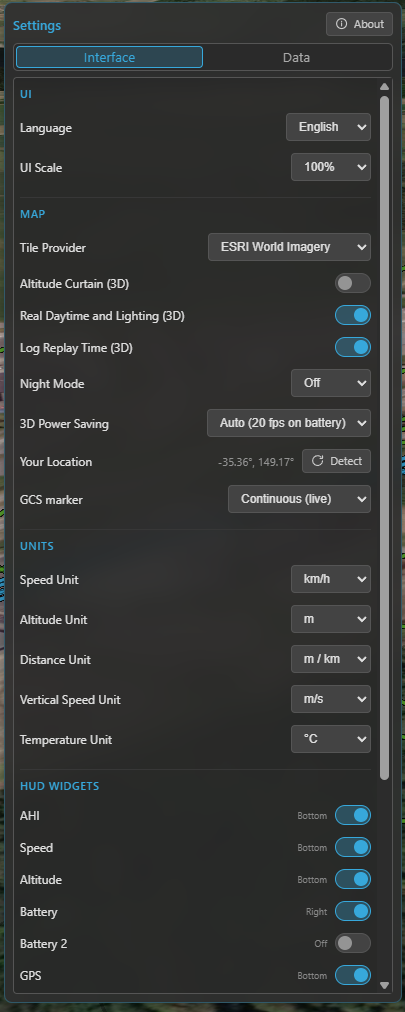
The Settings panel — the Interface and Data tabs, each grouped into labelled sections.
Interface tab
User interface
| Setting | What it does | Default |
|---|---|---|
| Language | The UI language. | English |
| UI scale | Scale the whole interface — 100 %, 125 % or 150 % (for high-DPI or far-away screens). | 100 % |
Map
| Setting | What it does | Default |
|---|---|---|
| Tile Provider | The map imagery source — used by both the 2D map and the 3D globe. | ESRI Hybrid |
| Altitude Curtain (3D) | Draw the vertical wall from the flight track down to the ground in 3D. See 3D map. | On |
| Real Daytime and Lighting (3D) | Light the 3D globe with the real sun position (day / night, shadows). | On |
| Log Replay Time (3D) | During replay, drive that lighting from the log's actual time of day (needs the option above). | On |
| Night Mode | Dim the 2D map at night — Off / Auto (by local time) / On. | Auto |
| Power Saving | Cap the 3D frame rate to save battery — Off (60 fps) / On (20 fps) / Auto (20 fps on battery). While active it also drops the smooth bar animations in the speed and battery widgets, so those read the current value directly. | Auto |
| Your Location | Your detected position (used as a fallback reference). Detect re-runs OS geolocation. | — |
| GCS Location | How the ground-station position is sourced — Off / Manual (set once) / Continuous (live). Used as the reference when no aircraft fix is available. | Continuous |
Units
These are global — every widget, map read-out and panel follows them. See Telemetry & display.
| Setting | Options | Default |
|---|---|---|
| Speed | km/h · mph · m/s · ft/s · kt | km/h |
| Altitude | m · ft | m |
| Distance | m / km · ft / mi | m / km |
| Vertical speed | m/s · ft/s | m/s |
| Temperature | °C · °F | °C |
HUD widgets
Toggle each widget on or off; the indicator shows which dock it currently lives in. For what each widget shows, see the Quick tour. By default AHI, Speed, Altitude, GPS, Compass, Home, Flight Mode and Battery are shown; the rest are off.
Data tab
Map (caches & 3D)
| Setting | What it does | Default |
|---|---|---|
| Tile Cache | On-disk cache size for the map imagery (off … 5 GB), with a usage bar and Clear. Used by both 2D and 3D, and what makes the map work offline. | 200 MB |
| Terrain Cache | Disk cache for the Copernicus terrain used by terrain analysis (size read-out + Clear). | — |
| Cesium Ion Token | Your free Cesium Ion token, which enables real-world 3D terrain. See 3D map. | (none) |
| Airspace Manager | Enable the aeronautical overlay, pick the provider (OpenAIP) and enter its API key. See Airspace Manager. | On, no provider set |
Telemetry
Kite polls the link at just two configurable rates — Attitude and GPS / Position. Everything else is derived from those: a few fields ride along with (a fraction of) those polls, and the remaining data — status, battery, flight mode, RC link, … — refreshes at roughly 1 Hz. So these two rates set how smooth the instruments feel; the rest is automatic.
| Setting | What it does | Default |
|---|---|---|
| Attitude | Attitude (AHI / compass) update rate — 1–5 Hz. Higher is smoother but uses more link bandwidth. | 5 Hz |
| GPS / Position | Position / speed / altitude update rate — 1–5 Hz. | 2 Hz |
| Airspeed | Request airspeed telemetry (when the aircraft has an airspeed sensor). | Off |
| Wind | Request wind-estimate telemetry (shown on the compass widget). | Off |
| Direction indicators | Draw the heading / course / predicted-turn lines at the aircraft on the map. | On |
| Full MAVLink Telemetry | MAVLink only — hand rate control to the flight controller (streams everything at its own rates, ignoring the two rates above). For fast links / full .tlog capture. See Telemetry & display. |
Off |
| Radar tracking | Master switch for foreign-vehicle radar, with per-system enables (ADS-B, FormationFlight). See Radar & ADS-B. | On (ADS-B on) |
| RC Control | Enable GCS RC control (reveals the RC tool). See RC control. | Off |
Airspeed and Wind each request extra messages over the link, so they're separate toggles — leave them off to save bandwidth on a slow over-the-air radio, turn them on when the link can spare it.
Flight Logbook
| Setting | What it does | Default |
|---|---|---|
| Enable flight logging | Record a flight-summary entry per flight in the logbook. | On |
| Enable flight recording | Record the full telemetry track for replay. | On |
| Raw flight logs | Also keep the raw MSP/MAVLink stream (.rawmsp / .tlog) for each recording. |
Off |
| Continuous raw logging | Record the raw stream the whole time connected, not just while armed. | Off |
| Flight log database | Where the logbook database lives — Choose a path or Use default. | default path |
| Compact Database | Defragment the database to reclaim space (rarely needed). | — |
| Raw log path | Where raw .rawmsp / .tlog files are written. |
default path |
| Blackbox decoder | The INAV blackbox_decode helper — shows its version and lets you download / update it. |
— |
See Flight logbook for how these are used.
Diagnostics
| Setting | What it does | Default |
|---|---|---|
| Log level | How much Kite writes to its diagnostic log file — Off / Error / Warning / Debug. Raise it when reporting a problem. | Warning |
| Open log folder | Open the folder containing the diagnostic log in your file manager. | — |
Mission Control
| Setting | What it does | Default |
|---|---|---|
| Default waypoint altitude | The altitude new waypoints get when you place them. | 50 m |
| Default PosHold time | The default loiter time for a new hold waypoint. | 30 s |
See Missions.
Alerts
| Setting | What it does | Default |
|---|---|---|
| Altitude | The altitude above which the aircraft is flagged (also the reference for altitude track-colouring). | 120 m |
| Battery alert | The charge % at which the battery widget enters its alert state (and multi-battery AUTO drops to the lowest pack). See Batteries. | 30 % |
| System messages | How many in-app notifications to show — Off / Error / Warning / All. Currently MAVLink (ArduPilot / PX4) only — INAV has no equivalent message source. | All |
See also
- The interface map: Quick tour.
- File formats Kite reads and writes: File formats.