Flight logbook
The logbook is Kite's flight history: every flight it records (or you import) is stored locally, with stats, notes, weather and links to the aircraft, batteries and mission used — and you can replay any of them on the map and instruments. It works for INAV, ArduPilot and PX4 alike.
Open it from the Logbook tool on the navigation rail.
Recording happens automatically
While you're connected with flight logging enabled (Settings), Kite records telemetry in the background and splits it into flights by arm → disarm. When a flight ends you get a short post-flight summary where you can:
- Save or discard the flight,
- enter the battery you flew (one or several serials, comma-separated — see Batteries),
- add notes, and
- link the mission that was loaded.
If the app is closed or the link drops mid-flight, the next start offers to recover the interrupted recording (save / continue / discard) so the flight isn't lost — note that a recording continued after an interruption will have a gap for the time the link was down.
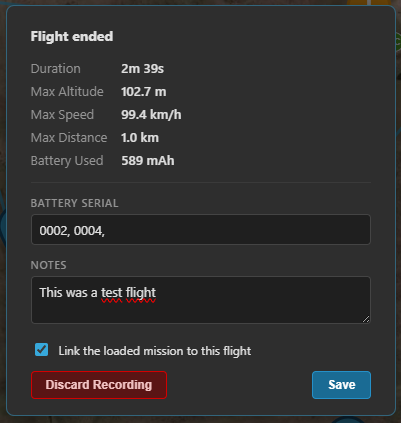
The post-flight summary — save or discard, link the battery (one or several serials) and the mission, add notes.
The flight list
Flights are grouped into a collapsible tree you can re-organise with the sort selector — by aircraft, location and date in the order you prefer — and narrow with the search box. Each entry shows the essentials (date, aircraft, location, duration, distance); pick one to open its details.
Flight details
The detail panel shows everything about the selected flight:
- Stats — duration, max altitude / speed / distance, and more.
- Aircraft — the craft name, soft-linked to its entry in the Vehicle library.
- Battery — the linked pack(s), each as its own chip (open it in the Battery Manager, or shown as not in library); edit to add or change serials. See Batteries.
- Mission — the linked mission, openable in the Mission Manager.
- Weather, notes and pilot — editable.
- Source & stored log — where the flight came from (live recording or an import) and, when an onboard log file was kept, an inline control to export or delete it.
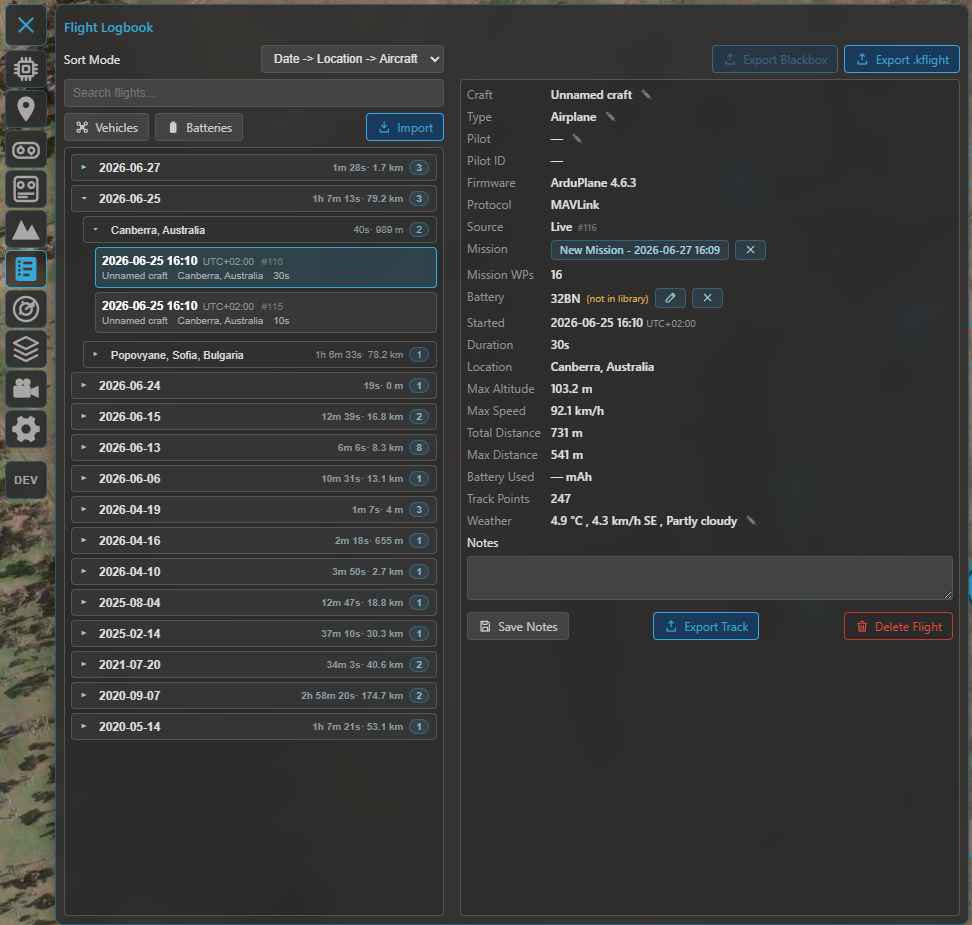
The logbook view: the flight list (left) and the selected flight's details (right).
Replaying a flight
Disconnect, then select a flight and press play: Kite replays the recorded telemetry through the same instruments and map as a live flight. The player gives you play / pause, a timeline scrubber and playback speed, and the flown track can be coloured by flight mode, altitude, speed or signal. If the flight has a linked mission, it's drawn alongside the track. 3D replay works too — see the 3D map.
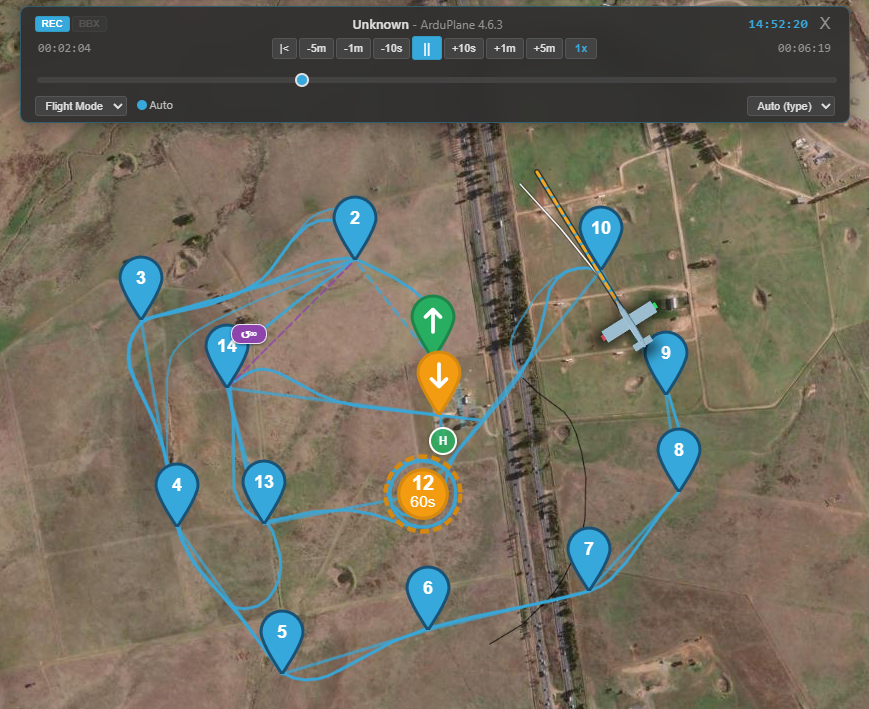
Replaying a recorded flight — the player (play / pause, timeline, speed) drives the same instruments and map.
Importing logs
Use Import to pull in logs from outside Kite (one file or a batch). Supported formats:
| Format | From |
|---|---|
INAV Blackbox (.bbl, .txt) |
INAV onboard flash (.bbl) or SD-card (.txt) blackbox |
ArduPilot Dataflash (.bin) |
ArduPilot / PX4 onboard logs |
MAVLink telemetry (.tlog) |
a MAVLink ground-station recording |
MWPTools raw-MSP (.rawmsp) |
mwp's raw telemetry capture |
Kite flight (.kflight) |
a flight exported from another Kite install |
A progress bar tracks the import. INAV Blackbox needs the blackbox_decode helper, which Kite
fetches automatically the first time you import one. Imported telemetry logs (.tlog / .rawmsp) are
treated as telemetry recordings and split into separate flights on the arm / disarm markers in the
log, the same way a live recording is.
Exporting
.kflight— export selected flights (multi-select supported) as Kite's portable flight file, to move them to another install.- Original log file — re-export the onboard log stored with the flight: an INAV Blackbox
(
.bbl/.txt) or ArduPilot Dataflash (.bin). Imported.tlog/.rawmsptelemetry is parsed straight in (not kept as a file), so there's nothing to re-export for those. - Track — export a flight's path as KMZ / KML (Google Earth), GPX or CSV.
Vehicles & batteries
From the logbook toolbar you can open the two libraries that flights link to:
- Vehicles — your aircraft, with build sheets and per-craft flight history.
- Batteries — your packs, with cycle / usage tracking and the per-flight links.