3D map
Kite has a full 3D globe view, built on CesiumJS, alongside the flat 2D map. It drapes real-world terrain and map imagery over the globe and renders the same data you see in 2D — the flight track, the mission, the aircraft, and every overlay (radar, geozones, safe homes, airspace) — in three dimensions, with several camera modes including a first-person cockpit view.
Switching between 2D and 3D
Use the 2D / 3D button in the map's corner controls to switch views. Your position and zoom carry across, so you stay looking at the same place. Everything that's on the 2D map appears in 3D and vice-versa; the difference is purely how it's drawn.
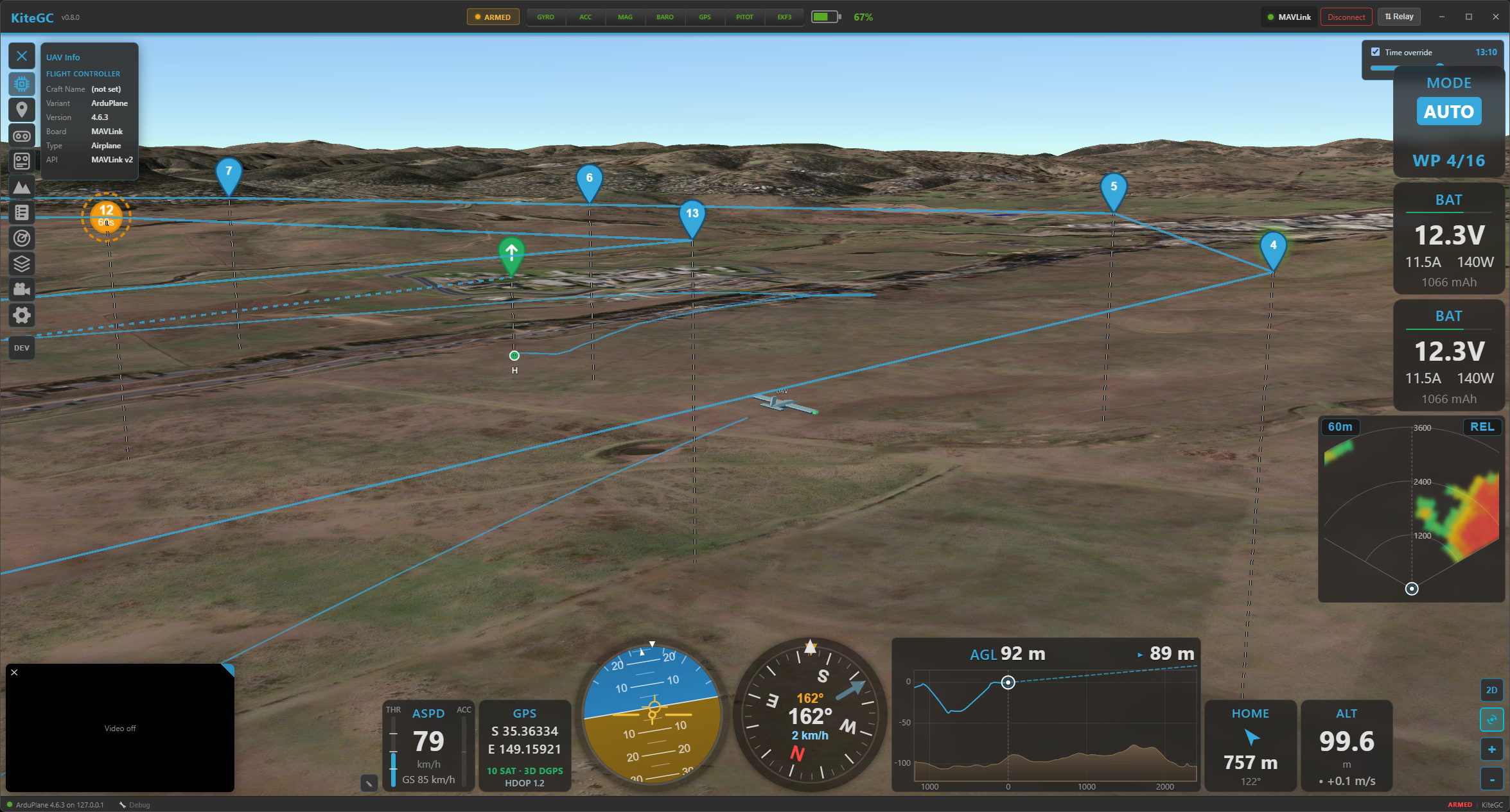
The 3D globe: real terrain, the altitude-coloured flight track with its curtain to the ground, and the mission overlay.
Real-world terrain & imagery
3D terrain comes from Cesium World Terrain, which needs a free Cesium Ion token. Kite prompts you for one the first time you open 3D; paste it once (or add it later in Settings → Data) and the globe shows true elevation. Without a token the 3D view still works — you just don't get real-world terrain relief. The surface imagery is whatever map/tile provider you've chosen for the 2D map, draped over the terrain.
3D needs an internet connection
The terrain mesh is streamed live from Cesium and is not cached for offline use — this is a design limitation. In the field without a connection, the 2D map (whose tiles are cached) is the offline-capable view. See the offline notes.
The flight track in 3D
The track is drawn at its true altitude and colour-coded, exactly as in 2D — but how you colour it depends on whether you're flying or reviewing:
- Live — the growing trail is always coloured by flight mode (there's no choice; it tracks the mode as it changes).
- Replay — the track-colour dropdown in the player lets you colour the whole track by flight mode, altitude, speed or signal.
To make height legible the track gets:
- a clean line with a dark outline,
- a translucent ground shadow draped on the terrain directly below it, and
- an altitude curtain — a vertical wall from the track down to the ground (toggle it in Settings → Interface → Map → Altitude Curtain (3D)).
The track uses the aircraft's smooth fused-altitude source, so it doesn't stair-step. The live trail grows behind the aircraft (with a thin ground-clamped trail shown before arming).
The mission in 3D
A loaded mission renders just like 2D — the same coloured route lines and the same waypoint icons (shown as fixed-size markers that always face you) — plus a drop-line from each waypoint straight down to the ground so you can read its height over the terrain. In replay, the MISSION toggle in the player shows/hides it.
Camera modes
The camera button in the corner cycles through four modes (the icon shows the current one):
- Free — fully manual: drag to rotate, right-drag/scroll to pan, tilt and zoom anywhere.
- Follow (chase) — the camera rides behind the aircraft and follows its heading. Scroll to change the chase distance; drag vertically to change the chase pitch. Motion is smoothed.
- Orbit — locks onto the aircraft and lets you orbit around it freely.
- FPV (cockpit) — the view sits at the aircraft, looking along the flight direction, with no model in the way and stabilised motion. A HUD overlays attitude (artificial horizon, pitch/roll), heading, speed and altitude, plus a flight-path marker. Scroll to change the field of view (the FPV "zoom").
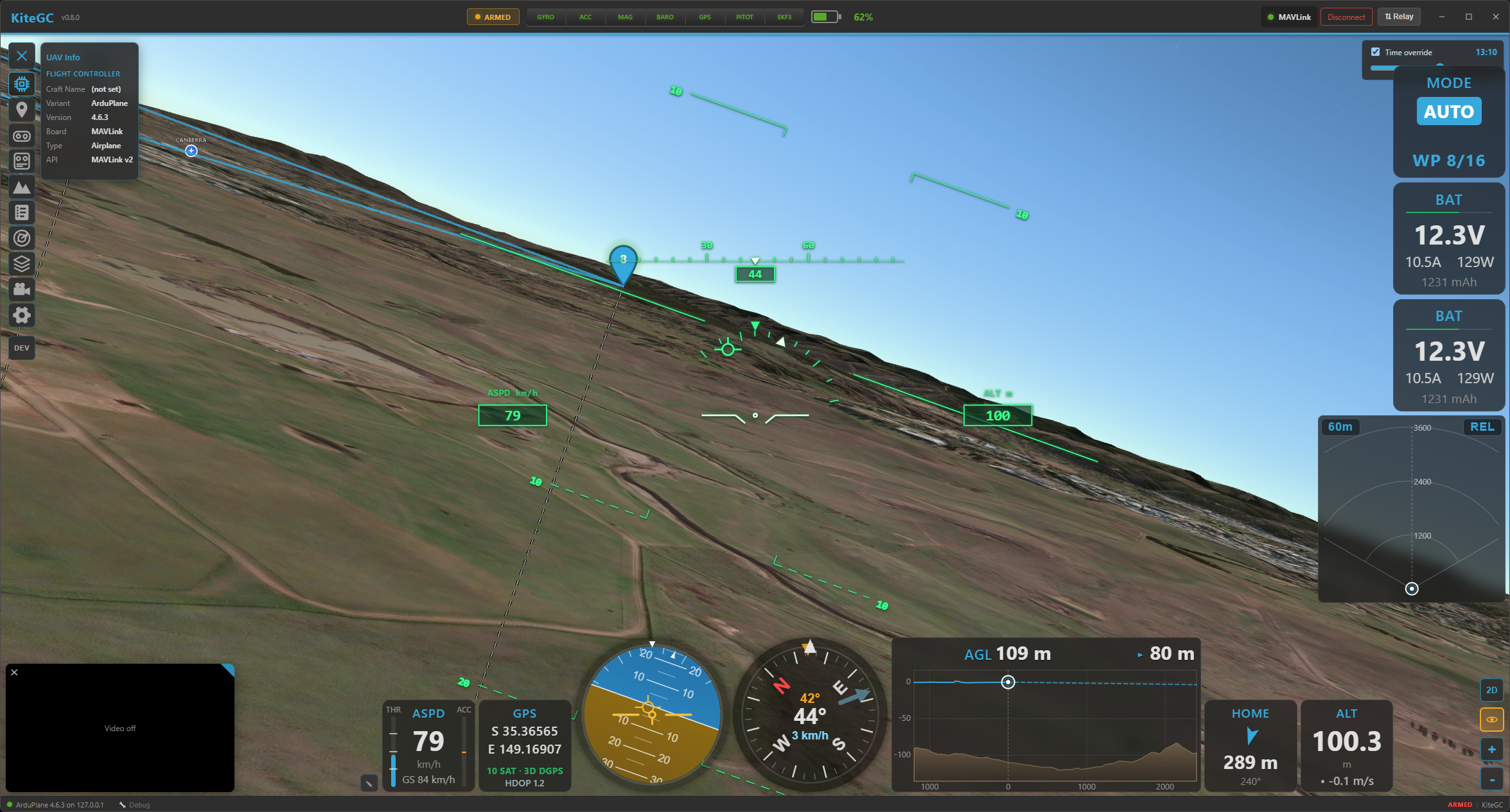
FPV mode: an onboard view along the flight path with an attitude/heading/speed HUD and flight-path marker.
The aircraft in 3D
The aircraft is a 3D model chosen for its type, oriented to its real attitude (pitch, roll, yaw) and motion-smoothed so it moves cleanly. In replay it flies along the recorded track; live it follows telemetry in real time. The same models are used for the chase/orbit views and are hidden in FPV.
Everything else, in 3D too
The 3D map mirrors the rest of Kite's overlays, each placed at real altitude:
- Radar contacts — 3D models coloured by relative altitude, with drop-lines and ground footprints for near-level traffic. See Radar & ADS-B.
- Geozones / geofence / rally points — zones as extruded volumes between their altitude limits. See Safety.
- Safe home & autoland — the guard rings and the autoland approach drawn as a real descent profile. See Safety.
- Airspace & obstacles — airspaces and obstacles from the Airspace Manager as 3D volumes/markers.
Settings worth knowing
In Settings → Interface → Map:
- Altitude Curtain (3D) — the vertical wall under the track (above).
- Real Daytime and Lighting (3D) — light the globe with the real sun position (day/night, shadows).
- Log Replay Time (3D) — during replay, drive that lighting from the log's actual time of day, so a dusk flight looks like dusk.
- Power Saving — cap the 3D frame rate to save battery: Off (60 fps), On (20 fps) or Auto (20 fps on battery). Helpful on laptops and tablets. While active it also drops the smooth bar animations in the speed and battery widgets (they jump straight to the current value), which saves noticeable CPU during a flight — the readings are unchanged.
Where to go next
- Colour the track and read the modes: Telemetry & display.
- Preview a route's terrain clearance: Missions and Safety.