Airspace Manager
The Airspace Manager overlays aeronautical data — airspaces, obstacles, airports and model airfields — on the 2D map and the 3D globe, and lists what's near you. It's the static counterpart to Radar & ADS-B: Radar shows moving aircraft, the Airspace Manager shows the fixed features of the airspace around you.
The same panel is also where you edit the flight controller's own keep-in / keep-out areas — geozones (INAV) and the geofence / rally points (ArduPilot / PX4). Those are covered in Safety; this page is about the aeronautical overlay.
Open it from the Airspace tool on the navigation rail.
Setting it up (OpenAIP)
The aeronautical data comes from OpenAIP, which needs a free account and an API key. In Settings → Data:
- Enable the airspace feature (this reveals the Airspace tool on the navigation rail).
- Set the provider to OpenAIP.
- Paste your OpenAIP API key.
Your key, your licence
OpenAIP is free for non-commercial use with a user-supplied key — the licence obligation is yours. Get a key from your OpenAIP account. Data is © OpenAIP contributors.
The panel
The panel switches between two views in its header — there's no split layout, so the map stays as large as possible (this changed when the FC airspace editors were added):
- Nearby (the info view) — a list of the features around you, grouped Obstacles · Airspaces · Airfields, distance-sorted and capped to the nearest few per group within range. Click an entry to centre the map on it and highlight it. Each entry shows the relevant detail (obstacle height, airspace floor/ceiling, field type).
- Settings (the compact view) — the per-layer visibility and ranges (in a Show on map group), plus the FC airspace editors at the top.
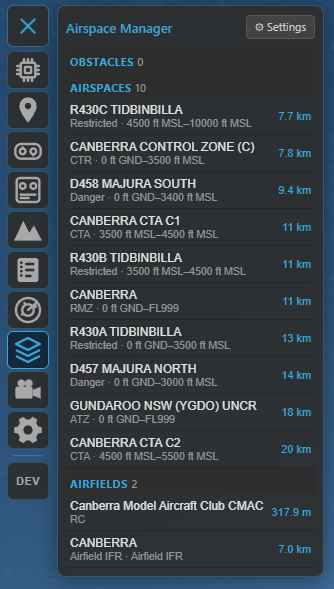
The Nearby view: features around you grouped into Obstacles, Airspaces and Airfields — click one to centre and highlight it on the map.
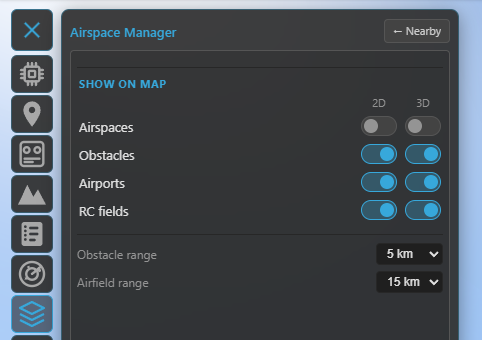
The Settings view: the FC airspace editors on top and the per-layer 2D / 3D visibility + ranges in the "Show on map" group.
The layers
Four aeronautical layers, each with separate 2D and 3D visibility toggles (so you can show airspaces on the flat map but only obstacles in 3D, for example):
- Airspaces — controlled/restricted/danger zones and the like, drawn as class-coloured polygons with their floor/ceiling altitudes. In 2D all of them show (subject to zoom, below); in 3D only the ones relevant to your aircraft are drawn as floor-to-ceiling volumes (within ~500 m above, ~5 km laterally, or whichever you're inside) — this keeps the globe readable.
- Obstacles — wind turbines, masts, towers, chimneys and cranes, with a type icon and height. In 3D each becomes a vertical column from the ground to its top; obstacles with no published height get a clearly-distinct estimated column. Critical for low flying.
- Airports — typed markers (international / airport / airfield / heliport), as ground markers in 3D.
- RC fields — model / RC flying sites.
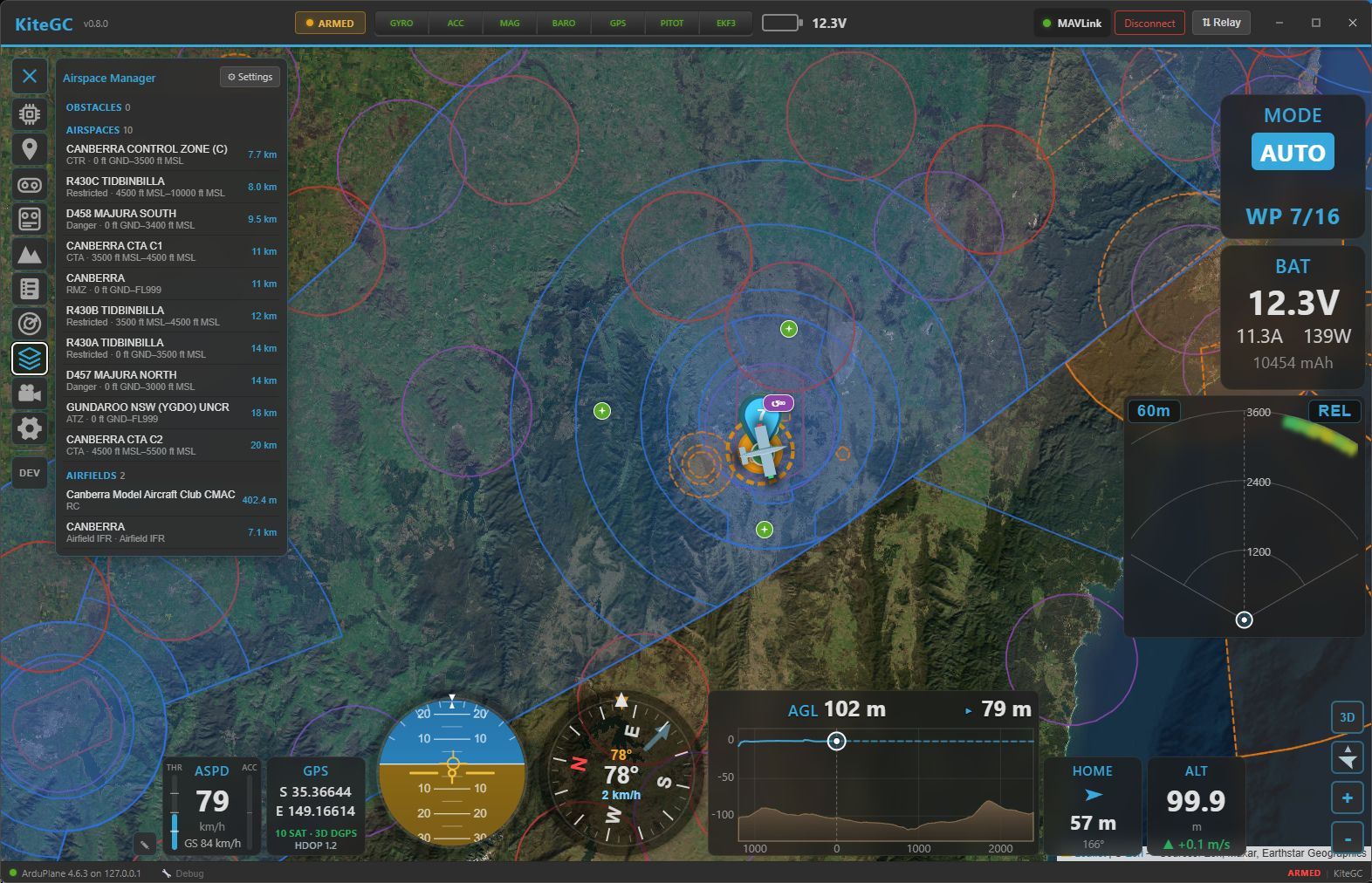
A wide view: airspaces drawn as class-coloured zones with their boundaries.
Ranges & decluttering
- Render / list ranges — set how far out obstacles and airfields are fetched and listed (1–25 km) in the Settings view, so you only see what's near your operating area.
- Zoom-based density — like the OpenAIP map, features appear by importance as you zoom: zoomed out you see only the big things (major airspaces, international airports); smaller fields, sectors and obstacles fill in as you zoom in. The Nearby list is not zoom-filtered — it always browses the closest features.
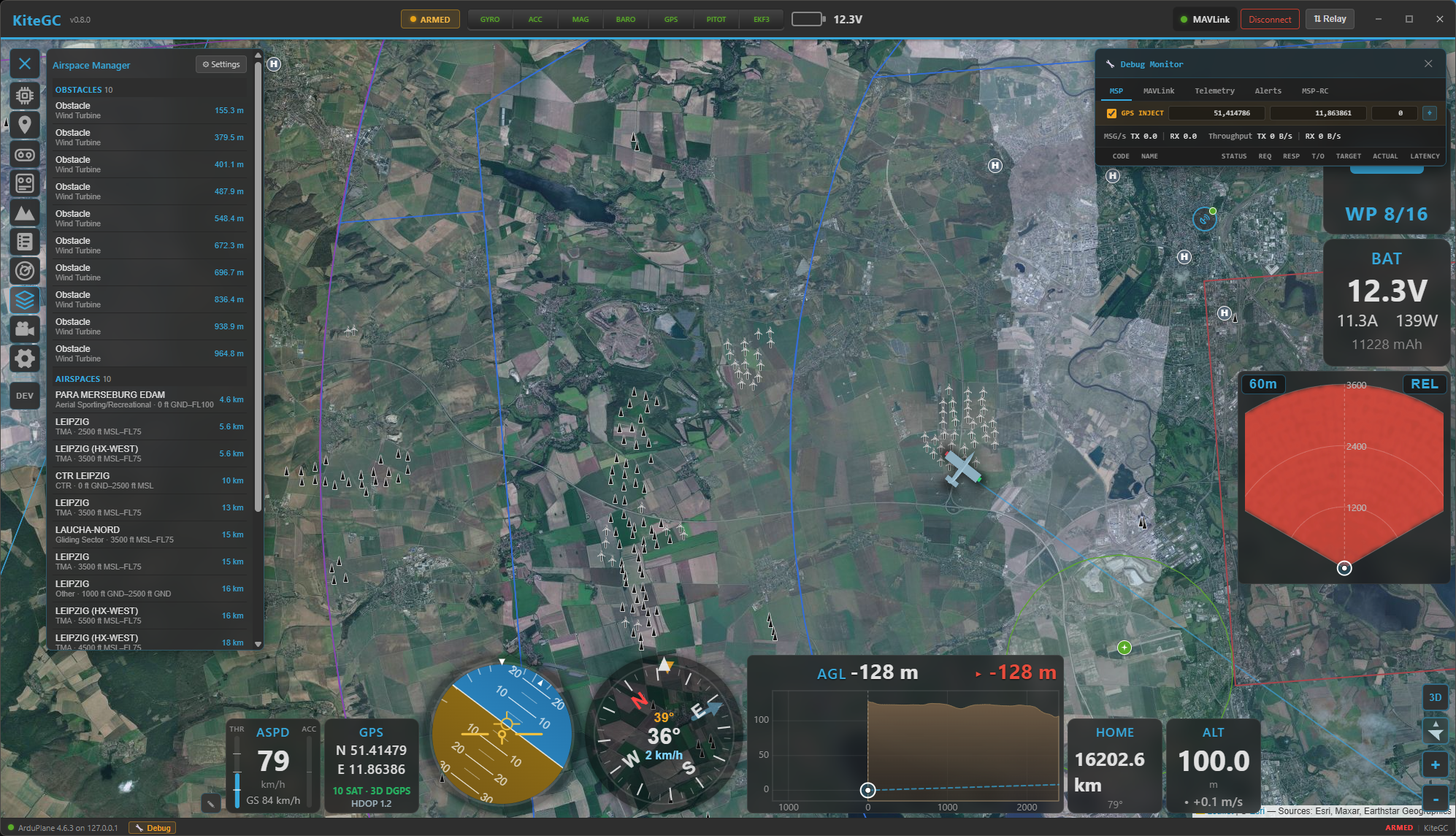
Zoomed in over an operating area: obstacles (and other close-range features) now appear alongside the airspaces.
Aeronautical data is static, so Kite caches the surrounding region and only refetches when you move well outside it — no constant polling.
The FC airspace editors (cross-reference)
The same panel hosts the editors for the airspace your flight controller enforces:
- Geozones (INAV) — keep-in / keep-out zones with per-zone altitude bands and breach actions.
- Geofence and Rally points (ArduPilot / PX4).
These are full editors (draw on the map, upload to the FC) and are documented in Safety.
Where to go next
- Moving traffic and collision alerts: Radar & ADS-B.
- The FC's own zones and fences: Safety.
- See it all in 3D: 3D map.