Your first connection
This walkthrough gets you connected once, the simplest way: a flight controller plugged into your PC over USB. For every other option — Bluetooth, network (TCP/UDP), BLE, and the passive/relay link modes — see the Connecting guide.
Before you start
- A flight controller running INAV, ArduPilot, or PX4.
- A USB cable between the FC and your PC (use the FC's USB port; power the craft if it needs it for GPS/peripherals — but remove propellers while bench-testing).
No COM port showing up?
Most flight controllers appear as a serial/COM port automatically. Some USB-to-serial adapters (e.g. CP210x, CH340) need a one-time driver from the chip vendor. If the port list stays empty, see Troubleshooting → Connection.
Connect, step by step
The connection controls live in the top bar (right-hand side) whenever you're disconnected.

The connection controls in the top bar: protocol, transport, port, baud, and Connect.
-
Plug in the flight controller with USB and wait a few seconds for your PC to recognise it.
-
Choose the protocol for your autopilot:
Your FC Protocol INAV MSP ArduPilot / PX4 MAVLink (The third option, Telemetry, is a passive listen-only mode — covered in the Connecting guide.)
-
Transport — leave it on Serial (the default).
-
Pick your port from the port dropdown.
Tip
Not sure which one it is? Open the dropdown, unplug the FC, reopen it — the entry that disappears is your board. Plug it back in and select it. The list refreshes on its own.
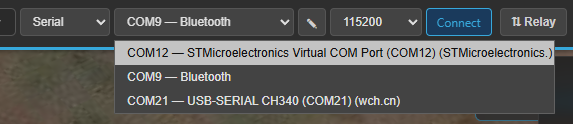
Here: a Virtual COM Port (the flight controller), a Bluetooth COM port, and a CH340 USB-serial adapter — pick the one that matches your board.
-
Baud rate — leave the default. Kite sets it for you when you pick the protocol: 115200 for MSP, 57600 for MAVLink. Only change it if you've set a non-standard rate on the FC.
-
Click Connect.
What you should see

Connected: the link indicator turns green and Connect becomes Disconnect.
- The button shows Connecting…, then switches to Disconnect once the link is up.
- The top bar comes alive: arming readiness, per-sensor status, battery, and link quality.
- The flight widgets start showing live values (attitude, altitude, speed, …).
- Once the FC has a GPS fix, your aircraft appears on the map.
That's it — you're connected. 🎉
Disconnect
Click Disconnect in the top bar. Kite remembers your port, baud, protocol and transport, so next time you can usually just press Connect straight away.
It didn't connect?
A few common causes — wrong baud rate, the port already in use by another app (INAV Configurator, Mission Planner…), a Bluetooth COM port, or a missing USB-serial driver. The Troubleshooting → Connection page walks through each.
Next steps
- Learn every connection option (Bluetooth, TCP/UDP, BLE, passive & relay) in the Connecting guide.
- New to the layout? Take the quick tour.