Video
Kite can show a live video feed alongside (or behind) the map — a local capture device such as a webcam or USB capture card, or an RTSP stream from a network video source. Open it from the Video tool on the navigation rail.
Choosing a source
Pick the source kind from the dropdown, set it up, then Start / Stop the feed. Your choice is remembered between sessions.
- Camera (device) — a local capture device opened the simple way, through the system's built-in camera access. Choose a device from the dropdown (webcams and capture cards the system exposes are listed automatically). No extra downloads.
- Native Capture (Advanced) — a local capture device opened via Kite's capture engine for more control and wider device support. See the comparison below.
- RTSP (network) — enter the stream URL (e.g. from your video receiver or an RTSP server), pick a transport, and optionally save the connection to a list for one-click recall — see RTSP connections below.
Supported RTSP video codecs
H.264 and MJPEG are supported and tested everywhere. H.264 is the usual choice; MJPEG costs more bandwidth but is passed through untouched — the lightest option wherever nothing should be converted (see the platform notes). HEVC/H.265 plays wherever the Kite RTSP client does the decoding: always on Android and iPad, and on Windows, Linux and macOS with the Native RTSP client on, the default (hardware decode; Windows additionally needs the free "HEVC Video Extensions" from the Microsoft Store). macOS is the one platform whose classic engine path plays HEVC as well.
Other codecs — VP8, VP9, AV1 — are not supported. A stream Kite cannot play usually shows up as an endless "Reconnecting…" rather than a clear error. If you need one of them, please open a request: the limit is that we have no way to test it, not that it is impossible.
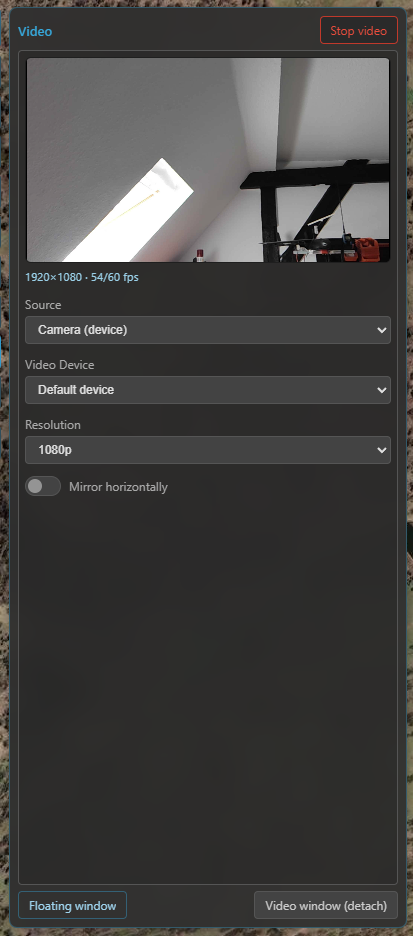
The Video panel — source kind, device / RTSP URL, resolution, frame rate and mirror, with Start/Stop.
Camera (device) vs Native Capture — which should I use?
Both play a local capture device; they differ in how they open it.
| Camera (device) | Native Capture (Advanced) | |
|---|---|---|
| Setup | Nothing to install | Needs the ffmpeg helper (downloaded automatically) |
| Device list | What the system exposes to apps | Read directly from the capture hardware — can find devices the Camera list doesn't show (e.g. some USB HDMI capture dongles) |
| Resolution / frame rate | A request — Auto / 720p / 1080p and an optional 30 / 60 fps wish; the camera picks the closest mode it supports | Device-verified — only the resolutions and frame rates your device actually reports (from a curated FPV set: SD PAL/NTSC, 480p, 720p, 1080p, 1440p) |
| Codec | Chosen automatically | Chosen automatically to hit the selected resolution/frame rate |
Start with Camera (device). Switch to Native Capture (Advanced) if your device isn't listed under Camera, or when you want to pin an exact resolution / frame rate that the device confirms it supports. Both deliver the same smooth, hardware-accelerated picture for devices the system can open; Native additionally reaches devices that only the capture engine can see.
Resolution, frame rate and mirror
- Resolution — Camera offers Auto / 480p / 720p / 1080p; Native offers the device-verified list.
- Format (Native only) — the capture format the device reports, e.g. MJPEG or a raw one. MJPEG is the efficient choice: the picture is passed straight through with no conversion at all.
- Frame rate — Camera offers Auto / 30 / 60 fps; Native offers the frame rates the device reports for the chosen resolution and format.
- Mirror — flip the image horizontally (handy for front-facing cameras). Applies to every place the feed is shown.
- Disable hardware acceleration — force the CPU for the conversion of an RTSP stream into the image stream. The switch appears only where that conversion runs on hardware: on Linux, for an RTSP source with the Native RTSP client switched off, on a machine whose browser engine offers no direct video path, with ffmpeg installed and a hardware decoder Kite's test found working (see the platform notes). Windows, macOS, Android and iPad never show it. Only needed if the picture is broken or unstable with hardware acceleration; the setting is remembered.
The panel has no preview of its own — the picture lives in the floating window, the docked window or
the widget (see Where the video shows). Its top shows the source's state
instead (Video off, Starting…, Live, or the error), and while the feed is live the
resolution, frame rate and, for an RTSP stream, the codec and (where it is measured) the
bitrate.
Below that it names the pipeline, with two labels: Transcode (Copy = nothing is converted ·
Hardware · Software) and Surface (how the picture reaches the screen). Copy is the cheapest
possible case.
RTSP connections, transport and auto-reconnect
The RTSP source has a small connection manager built in:
- Direct connect — type the
rtsp://…URL and press Start. Next to the URL sits the transport selector:- Auto (default) — lets the engine negotiate the transport, and falls back to an ffmpeg reader for the rare server that refuses every forced transport. Right for most sources.
- UDP — lowest latency; required for UDP-only servers (some FPV / air-unit streamers).
- TCP — for sources that only speak interleaved TCP, or when UDP is blocked by the network.
- Save it — the 💾 button stores the current URL + transport as a named entry (named after the host; rename it via ✎). Connections are only saved when you press the button — never automatically.
- The list — each saved connection is a one-line entry: click it to load and connect, ✎ edits name / URL / transport inline, ✕ removes it. The entry matching the current URL is highlighted.
- Smoothing buffer (frames) — below the connection list. 0 (the default) plays with the lowest possible latency; each step up buffers one frame time more on the receiving side (at 60 fps: ~17 ms per step, derived automatically from the stream's actual frame rate). Raise it if playback looks uneven — duplicated or skipped single frames — on a jittery link such as cellular; every step costs exactly that much extra latency, so leave it at 0 when the picture is already smooth. The setting takes effect immediately on the running stream and is remembered.
- Native RTSP client (on by default) — Kite's own built-in stream client: no helper downloads, UDP-first connection with automatic TCP fallback, and native hardware H.264/HEVC decode on Windows, Linux and macOS (Android and iPad always use it; there is no toggle there). Recommended on Linux — see the platform notes. If a particular source misbehaves with it, switch it off to fall back to the classic engine path.
Auto-reconnect: if a running RTSP feed drops or stalls — a radio hole on a cellular link, the source restarting, a network change — Kite reconnects automatically and keeps trying indefinitely until the feed returns or you stop it. While it retries, every video surface shows a "Reconnecting… (n)" overlay with the attempt count and a Stop button. Brief dropouts on a live feed are given a few seconds to heal on their own before a full reconnect is forced, so momentary signal dips don't interrupt the stream unnecessarily.
Recording the RTSP stream (desktop)
Switch on Record the video stream below the saved connections and Kite writes the video to a file for every flight: the recording starts when the connected vehicle is armed and ends when it is disarmed.
- What is recorded: the stream exactly as it arrives — no re-encoding, so the quality is the
source's and the recording costs almost no CPU. The file is a Matroska file (
.mkv) that the common players open (VLC, mpv, the Windows media player). - Requirements: the Native RTSP client and an H.264 or HEVC source. An MJPEG stream is not recorded. Windows, Linux and macOS; not on Android and iOS.
- Where it goes: the Recording folder — by default a
KiteGCfolder in your videos folder. The file is named after the vehicle and the local time, for exampleWing_2026-11-20_14-05-31.mkv: the name the vehicle has in your vehicle library, else its craft name, elseVideo. - A few seconds before arming are included: the recording starts at the last keyframe the source sent before you armed.
- In the logbook: once the flight is saved, its details show the recording under Video, and
its files move into a folder of their own below the recording folder:
Flights/<name>/, named after the flight's first recording (without a_partnumber). What lies directly in the recording folder is then a recording that is still being written, has no flight (yet) or could not be moved — on Windows a file another program holds open stays where it is, and remains linked all the same. Show folder in the flight details opens the flight's folder in the file manager (not on phones and tablets). Recordings linked before this version stay where they are. - Rename and sort the files as you like: every recording carries an id of its own, and Kite finds the file by it below the recording folder — under a new name, in subfolders of your own scheme (up to six levels deep). Only the folder itself must stay the one set as Recording folder. A file that is no longer below it is shown struck through in the flight details.
- Do not convert or re-save the file with another program if it should stay linked to its flight: tools that rewrite a Matroska file usually give it a new id.
- Taking recordings to another Kite: export the flights as
.kflightand let Kite copy their recordings next to the file; the import on the other side offers to copy them into the recording folder there, each flight into its own folder. See Logbook → Exporting. - Clean up unlinked recordings… (below the recording folder, shown while recording is switched on) lists Kite's recordings in the folder that no flight in your logbook is linked to, with their names and total size, and removes them when you confirm (recycle bin / trash where there is one). A flight's folder that is empty afterwards goes with its last recording, also when you delete a flight together with its recordings. The typical case is the recording of a flight you deleted while keeping the file. Left alone are a recording that is still being written, including the earlier parts of it, a recording that waits for its flight to be saved — also one a crash cut off; Kite keeps waiting for 30 days, even after you discarded the flight — and every Matroska file Kite did not write. If you use several flight databases with one recording folder, the recordings of the other databases count as unlinked.
- Dropouts: when the stream reconnects during a flight, the recording continues in a new file
(
…_part2.mkv). A new file also starts just below 4 GB, so a FAT32 drive works as a target. - If Kite is closed mid-flight, the recording is finished and joins the flight when that is saved after the next start.
- After a crash or a power loss the file stays in the recording folder and plays up to the last keyframe that reached the disk; the last seconds can be missing. Such a file has no seek index, so jumping around in it can be slow. It still joins its flight: when you start Kite again and the interrupted flight is saved — continued after reconnecting or saved as it is — the recording from before the crash is linked to it, next to the one made afterwards.
Recording runs only while armed and connected; without a link nothing is recorded.
Watching the recording with the replay
Open a flight that has a recording in the logbook while no vehicle is connected, and the video plays in the video window (or the Video widget) in step with the replay: play, pause, the speed button and dragging the timeline all move the picture along with the aircraft on the map.
- A running live stream is stopped when such a flight is loaded — the recording uses the same video surface. Start the stream again from the Video panel when you are done; a flight without a recording leaves the stream alone.
- Where nothing was recorded — before arming, after disarming, in a dropout between two files, or when the file is no longer in its folder — the window shows No video recorded for this part of the flight.
- At 4× and faster the video shows one picture per keyframe instead of every frame.
- Jumping backwards restarts the picture at the keyframe before the new position; with a source that sends keyframes rarely this takes a moment.
- Stop video in the Video panel ends the playback; the replay itself goes on.
With a vehicle connected the logbook does not put a flight on the map, so no recording plays then.
Helpers download themselves
Camera (device) needs nothing extra, and RTSP with the Native RTSP client (the default) needs no helper either (on Android that is always the case). Native Capture uses the bundled ffmpeg engine. Classic-path RTSP (Native RTSP client switched off) uses MediaMTX for the direct video path and ffmpeg for the image path — a machine whose browser engine offers no direct path (common on Linux) uses ffmpeg alone and never needs MediaMTX. Kite downloads whichever it needs automatically the first time you use that source — no manual install. On macOS ffmpeg is shipped with the app.
Where the video shows
The same feed can appear in several places at once (they all share one stream):
- As a widget — the Video widget in a dock. It always crops the picture to fill its tile, whatever its size. In the docks it takes no space while video is off (unless it is the dock's only widget) and comes back when a source starts; edit mode always shows it, so you can place it. On Android an RTSP stream on the Native RTSP client has one output: the tile also steps aside while the floating window is shown, and returns when you put the window away.
- In a floating window — a movable video frame over the map. Start slides it in from the left into the bottom-left corner (or to where you last left it) — unless a Video widget is active, in which case the window stays parked because the widget already shows the picture. A camera button — beside the window while it sits in the corner, otherwise in the bottom-left screen corner — parks it off-screen to the left and brings it back; the stream keeps running while it is parked, so it returns instantly. The window has a glass bezel like the widgets and no ✕ — the camera button is the only way to hide it. Drag the small square handle in its bottom-left corner (the four-way arrow) to move it; dragging it to the bottom-left screen corner snaps it there, where it displaces the bottom widget dock to make room (the dock shrinks by the window's size). Drag it away from the corner to un-snap and free-float. The top-right corner grip resizes it (aspect-locked, touch-friendly), up to 40 % of the app window's height. On an Android phone there is a docked window instead: fixed to the bottom-right of the map, sized to the stream (at most 40 % of the map height or half its width), no dragging. The corner marker in its top-left toggles between that size and a compact one (two thirds), for the video and the swapped-in map alike; the choice is remembered. A camera button above the map buttons slides the window off-screen to the right and back — it appears once a source runs and hides while the Video widget is active.
- In a detached window — the floating window taken out of the app into its own window, which
you can put anywhere: beside Kite, or on a second monitor that then becomes your video screen. It
stays on top of other applications and looks exactly like the frame inside the app.
Hold the pointer over the floating window and an unplug button appears in its top-left
corner; that takes the picture out. The detached window has no title bar — its buttons appear
when the pointer is over it: top-left brings the picture back into the app, bottom-right
switches to fullscreen on the screen it is on (or press
Esc). Drag the picture to move it, the top-right corner resizes it, and the frame keeps the stream's aspect ratio. It can't host the map (double-click does nothing there), and where it stands — including fullscreen — is remembered: quit while detached and it comes back detached, on the same screen. If that screen is gone, it opens at a default size on Kite's own screen. Requires the Native RTSP client — on Windows, macOS and Linux; the platform notes say what a Wayland desktop does differently.
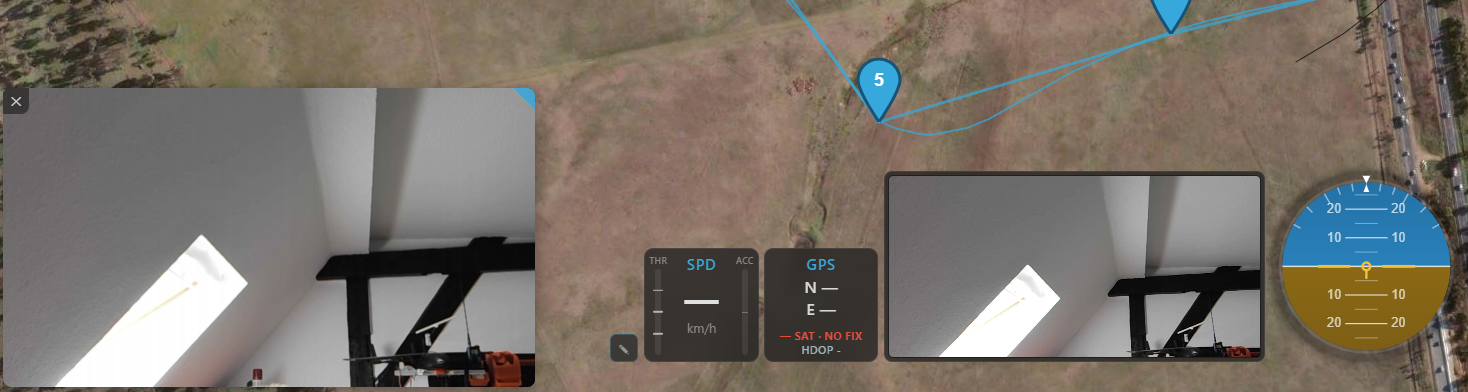
The floating video window (over the map) and the dockable Video widget — both showing the same feed.
Map ↔ video swap
Double-click a video surface (the Video widget or the floating window) to swap it with the map: the map jumps into the surface you clicked and the video moves out to the full-screen background — so you get video as your main view with the map in the small frame. Double-click again to send the map back to the full-screen background.
How interactive the swapped-in mini-map is depends on where it landed:
- In the widget — deliberately limited by space: 2D only and follow only — a tap on the little map switches between heading-up and north-up (remembered), and you can zoom: mouse wheel or pinch, or slide one finger up / down on a touchscreen. Nothing else on it reacts (no waypoint placing or dragging, no context menu), and its markers are drawn at half size. Switching the mission editor on brings the map back to full screen automatically.
- In the floating window — fully interactive: pan, zoom, tilt and rotate exactly as on the big map (right-drag and two fingers reach the map). The zoom buttons are hidden there to save room — use the mouse wheel, the touchpad or a pinch. To move the floating frame itself, drag the square handle in its bottom-left corner, the same one as in video mode.
- On an Android phone (docked window or widget) — the widget's limits apply: 2D, follow, no panning. Tap the small map to switch heading-up / north-up, slide a finger up or down on it to zoom (or pinch). Double-tap swaps. With the video full-screen, the corner button becomes a map button that hides and shows the small map; double-tap the full-screen video to send the map back. Unobstructed fullscreen does not exist on the Android phone — the video fills the map area next to the widget column.
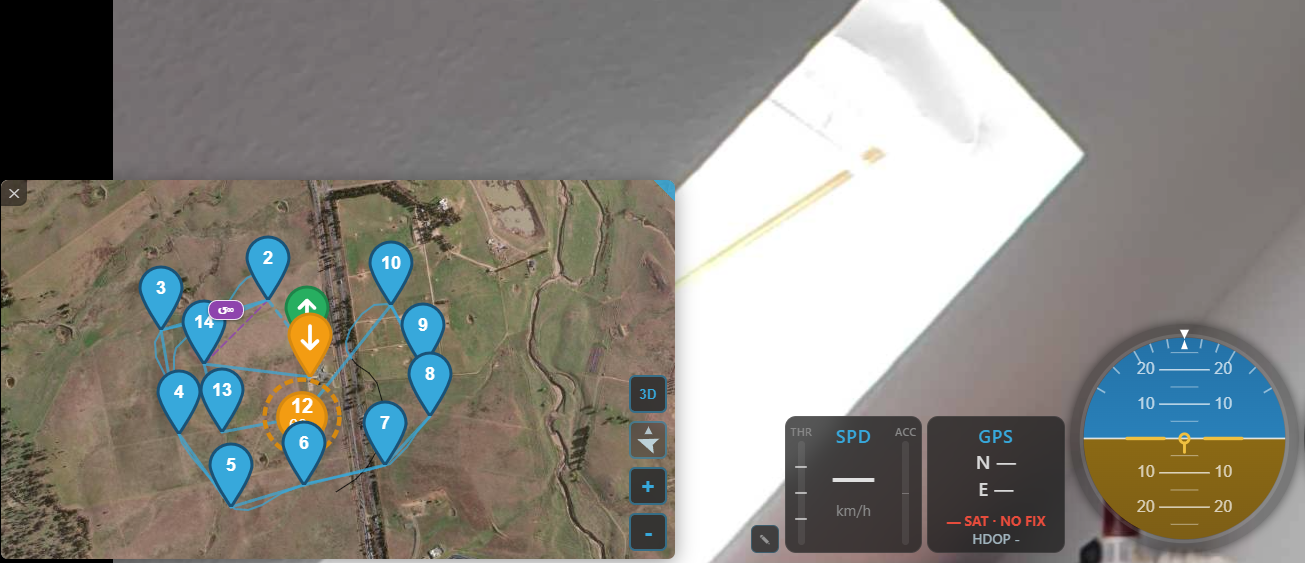
Swapped: the live video fills the background while the map rides in the smaller frame.
Unobstructed fullscreen
By default the swapped-in video fills the whole content area edge to edge — widgets, docks and the nav rail float on top of the picture. If you prefer the picture fully visible, turn on Unobstructed fullscreen in the Video panel (below Rotate 180°):
- The video becomes a framed box that keeps clear of the UI: the nav-rail column on the left is always kept free, and the right widget panel and the bottom widget dock are kept free while they hold widgets. An empty (or hidden) panel releases its edge, and the video grows into that space — as far as the stream's aspect ratio allows.
- The box is cut exactly to the stream's aspect ratio, so there are no letterbox bars.
- The area around the box shows a softly blurred map of the surroundings that follows your aircraft — the live UAV position when there is a GPS fix, the replayed model during a blackbox replay, or the ground-station location otherwise. With no position available the background stays plain.
The switch is remembered; turn it off to get the edge-to-edge fullscreen back.
Platform notes: what to expect per operating system
Video is the one part of Kite that depends heavily on components Kite does not ship: the operating system's built-in browser engine and its media plugins. That works out very differently per platform, and it is only fair to say so plainly.
Windows and macOS are the more predictable hosts for video. Both ship a single, consistent media stack, so a network stream is played directly by the system's hardware-accelerated decoder. If a smooth, low-CPU, low-latency feed is important to you — and especially if you plan to fly with it — those are the platforms we can most confidently recommend. For RTSP network streams, Linux joins them with the Native RTSP client, which is on by default — see below.
On macOS both RTSP routes are available. The classic engine (with the Native RTSP client switched off) plays H.264 and HEVC directly (the macOS browser engine is the only one that accepts HEVC on that path), and the Native RTSP client, on by default, is Kite's own client: H.264 and HEVC are decoded by the system's VideoToolbox and drawn straight into the video area — no helper programs, UDP-first with TCP fallback, mirror and rotate live. Either route is fine; the native one skips the helper download and the local relay leg. The detached video window works here too, and so does showing the picture in two places at once.
On Linux, keep the Native RTSP client on for network streams. With it (the default; Video panel →
RTSP section) Kite plays RTSP itself: H.264 and HEVC go straight into the machine's hardware
decoder — Intel/AMD graphics via VA-API, the Raspberry Pi 4's H.264 and the Pi 5's HEVC block via
V4L2, with an
automatic software fallback — and the picture is composited natively behind the interface instead of
being converted frame by frame. Measured on one laptop, a 720p60 HEVC stream plays at a stable 60 fps
for roughly a third of one CPU core where the classic path burned more than two cores and still could
not hold 50 fps. MJPEG sources are passed through untouched, as always. The client uses the
distribution's GStreamer plugins (the .deb installs them automatically; elsewhere:
gstreamer1.0-plugins-base, …-good, …-bad, gstreamer1.0-gtk3 and gstreamer1.0-libav, or your
distro's equivalents) — if one is missing, Kite reports which GStreamer element it could not find.
Showing the picture in two places at once and the detached video window both work on this
route; the notes below say what each of them costs.
Raspberry Pi 5 and HEVC
Encoders that pad the picture height to their block size — NVENC at 720p codes 736 rows, every 1080p stream codes 1088 — declare the visible part in the stream header. The Pi 5's decoder path in GStreamer would copy every picture to apply that crop, which the zero-copy display cannot take. Kite instead lets the decoder deliver the full padded picture and hides the padding rows under the interface, so these streams stay zero-copy as well.
The Pi 5's decoder also cannot paper over a lost picture: a picture whose reference never arrived stalls it, and the Pi's kernel driver then hangs until a reboot. Kite therefore holds the video after any lost packet until the next keyframe arrives — a short pause instead of a frozen decoder. A short keyframe interval at the encoder (1 s) keeps that pause short.
With the Native RTSP client off, video support is provided as-is. Kite then runs video through WebKitGTK, which hands playback to GStreamer — and which plugins your distribution installs is entirely up to your distribution. There are hundreds of combinations of distro, desktop, graphics driver and plugin set, and we cannot test or support them all. Concretely, these are things Kite cannot fix from its side on that classic path:
- Whether an RTSP stream can be played directly at all. Many Linux systems — Raspberry Pi OS and current Debian desktops among them — run a browser engine that does not expose the direct (WebRTC) video path, and that cannot be installed after the fact. Kite then falls back to a converted image stream. It works, but it adds a conversion, so expect noticeably more latency than on Windows or macOS — this is the single biggest practical difference. If a smaller delay matters more than resolution, send a smaller or slower stream from the source (e.g. 480p instead of 720p, or 30 instead of 60 fps): that saves work at every stage at once.
- How much each frame costs to put on screen. The image path decodes every frame for display, and the Linux engine is markedly slower at that than the Windows one — measured on one laptop, the same 720×576 frame took about 13 ms against roughly 2 ms, and longer while the machine was busy. So a frame rate that is effortless on Windows can be out of reach on comparable Linux hardware, whatever the CPU says.
- Whether that conversion uses your graphics hardware. Kite tests your machine the first time it is needed and uses the GPU for the conversion when it can — on Intel and AMD desktop graphics via VAAPI, and on Raspberry Pi 3/4 class boards via their built-in decoder. Where that works it is a large saving (measured on an Intel laptop: roughly a seventh of the CPU load). But it depends entirely on your driver stack: NVIDIA cards are not specifically covered, and any machine whose test fails simply converts on the CPU instead. The Video panel names the path in use, and the diagnostic log records the verdict (see Video troubleshooting).
- A camera that already delivers MJPEG is the best case on Linux. Nothing is converted at all — the picture is passed through unchanged, which costs almost nothing and gives the lowest delay Linux can offer. If latency is your priority on Linux, prefer an MJPEG source. The Video panel shows Transcode: Copy when this applies.
- You can force the CPU path. If hardware conversion misbehaves on your machine, switch on Disable hardware acceleration in the Video panel; the setting is remembered. The switch is only there when Kite's test found working conversion hardware — without it there is nothing to turn off.
- Local camera quirks. On Linux the system camera layer can be slow or unresponsive on some setups. Kite works around the worst cases (it caps the automatic resolution and frame rate, and routes the advanced capture path around that layer entirely), but a camera the system itself can't open cleanly is out of reach.
- The detached video window works, but it cannot stay on top of everything on Wayland. Current desktops that run on Wayland — GNOME's default — do not let an application put its own window above other applications, so the detached window takes its turn in the normal stacking order there. Put it on a second monitor or beside Kite and it stays where you want it. The window also decodes the picture for itself (a window cannot borrow another window's hardware video surface), so it costs a second hardware decode of the same stream.
- The picture in two places at once costs a conversion. The second place is drawn by the processor rather than the graphics chip (two hardware-accelerated surfaces cannot share one pipeline), which on a desktop costs a few percent of one core for a widget-sized tile. All the in-app surfaces (widget, floating window, full-screen swap) work everywhere.
None of this means Linux is unusable — with the Native RTSP client it is a first-class platform for network video, and a well-equipped desktop distribution generally plays the classic path fine too. In short: on Linux, keep the Native RTSP client on for RTSP; an MJPEG source is the lightest choice either way.
On Android, RTSP runs entirely through Kite's own built-in stream client — there is nothing to download and no engine choice: H.264 and HEVC are decoded by the device's hardware decoder, and MJPEG streams are shown directly.
- Location updates pause during a Wi-Fi stream. Every live location fix makes Android scan for Wi-Fi networks, and each scan takes the Wi-Fi radio off your network's channel for a moment — with an RTSP stream running over that same Wi-Fi, this shows up as a brief dropout roughly every ten seconds. Kite therefore pauses the continuous GCS-marker location mode automatically while an RTSP stream is playing over Wi-Fi: the GCS marker freezes at its last position and updates resume the moment the stream stops. Streams received over mobile data (or Ethernet) are not affected, and neither is a manually placed GCS marker. When Kite cannot tell which way the stream travels (some VPN setups), it pauses to be safe.
The iPad works the same way. RTSP runs through Kite's own client only (iPadOS cannot run helper programs), H.264 and HEVC are decoded in hardware by VideoToolbox, and the floating window, the full-screen swap and mirror/rotate all work. On iPhone there is no video at present: the Video panel only says so. Whether video can come to the iPhone is being looked into.
Where to go next
- Put the Video widget in a dock: Telemetry & display.
- Trouble getting a stream? Video troubleshooting.