Flight logbook
The logbook is Kite's flight history: every flight it records (or you import) is stored locally, with stats, notes, weather and links to the aircraft, batteries and mission used — and you can replay any of them on the map and instruments. It works for INAV, ArduPilot and PX4 alike.
Open it from the Logbook tool on the navigation rail.
Recording happens automatically
While you're connected with flight logging enabled (Settings), Kite records telemetry in the background and splits it into flights by arm → disarm. When a flight ends you get a short post-flight summary where you can:
- Save or discard the flight,
- check the vehicle the flight was recognised as, or pick another one or none (see Vehicles),
- enter the battery you flew (one or several serials, comma-separated — see Batteries),
- add notes, and
- link the mission that was loaded.
If the app is closed or the link drops mid-flight, the next start offers to recover the interrupted recording (save / continue / discard) so the flight isn't lost — note that a recording continued after an interruption will have a gap for the time the link was down.
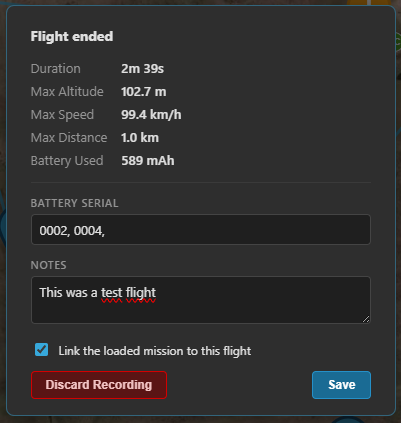
The post-flight summary — save or discard, link the battery (one or several serials) and the mission, add notes.
The flight list
Flights are grouped into a collapsible tree you can re-organise with the sort selector — by
aircraft, location and date in the order you prefer — and narrow with the search box
(it looks in the aircraft name, location, date and notes; a flight number such as #170 finds exactly
that flight). The chosen order is kept across restarts.
Each entry shows the essentials (date, aircraft, location, duration, distance); pick one to open its
details.
Flight details
The detail panel shows everything about the selected flight:
- Stats — duration, max altitude / speed / distance, and more.
- Craft — the craft name the flight was recorded with; the ✎ button corrects it without changing the vehicle link.
- Vehicle — the Vehicle library entry the flight belongs to (a click opens it). The ✎ button picks another vehicle or none; a flight without one offers Add vehicle, which creates the vehicle pre-filled from the flight and links the flight to it.
- Battery — the linked pack(s), each as its own chip (open it in the Battery Manager, or shown as not in library); edit to add or change serials. See Batteries.
- Mission — the linked mission, openable in the Mission Manager.
- Weather, notes and pilot — editable.
- Source & stored log — where the flight came from (live recording or an import) and, when an onboard log file was kept, an inline control to export or delete it. Behind the source stands what the flight takes in the database: ≈ size is an estimate of its recorded data, and File size is the stored original log on top of that. A linked pair shows the live recording and the imported log each with its own size.
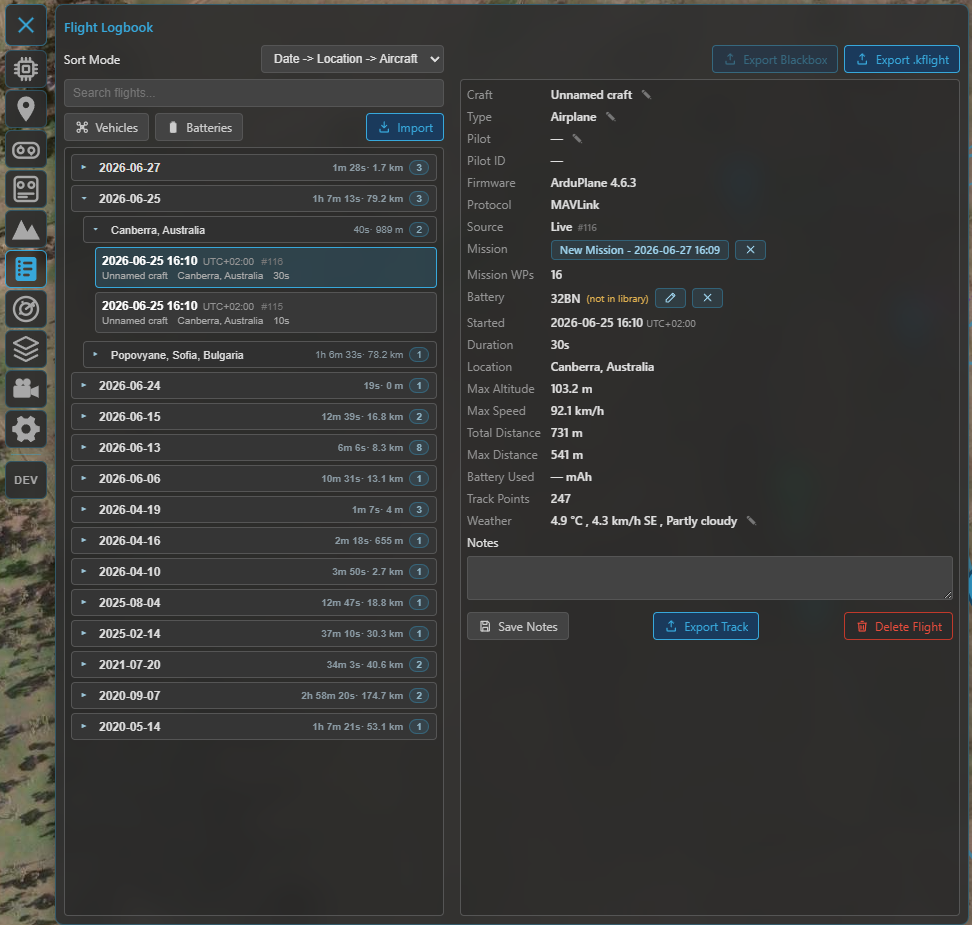
The logbook view: the flight list (left) and the selected flight's details (right).
Replaying a flight
Disconnect, then select a flight and press play: Kite replays the recorded telemetry through the same instruments and map as a live flight. The player gives you play / pause, a timeline scrubber and playback speed, and the flown track can be coloured by flight mode, altitude, speed or signal. If the flight has a linked mission, it's drawn alongside the track. 3D replay works too — see the 3D map.
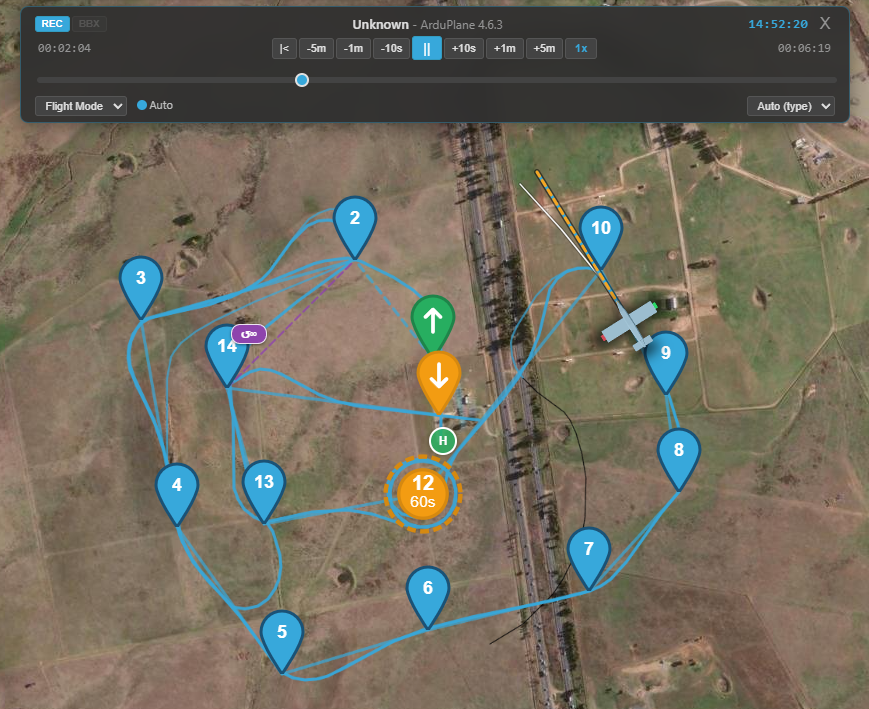
Replaying a recorded flight — the player (play / pause, timeline, speed) drives the same instruments and map.
While playback runs, the player folds into a slim strip under the top bar — craft and type, elapsed time, progress, total — so it hides as little of the picture as possible. Move the mouse into the area the full player occupies (or tap it on a touch screen) and it unfolds; leave the area (or tap anywhere else) and it folds again. While playback is paused the full player always stays open, so changing the speed, the track colouring or scrubbing never fights a folding panel. A map drag that ends in that area doesn't unfold it — only releasing the button there does. Clicking or tapping anywhere outside the Logbook panel collapses it to its info card, giving the map the room. On a small screen, where even the info card would lie over the replay player, the panel parks itself completely at that moment; its icon brings the info card back, and it then stays until you park it.
High-resolution replay
Flights are stored at 10 samples per second — plenty for the map, but an onboard log usually contains far more. When a flight has its original log stored (INAV Blackbox, ArduPilot Dataflash or PX4 ULog), the player offers a HI-RES switch: Kite re-decodes the stored log at its full rate into a temporary file and drives the instruments, horizon and stick overlay from it — updates then run at your screen's refresh rate instead of 10 Hz. Combined with the slow-motion speeds (0.25× / 0.5×) this is the way to study a manoeuvre frame by frame.
The first switch to HI-RES shows a short preparation popup (re-decoding a big log can take a
moment on slower machines). The decoded file lives in a hires-cache folder in Kite's own data
folder (not in a database folder you chose), is reused while the flight stays open, and is
deleted automatically when you close the flight — nothing accumulates. The map track and timeline stay at 10 Hz by design; high-res
feeds the live values.
Opening logs without importing them
You don't have to import a log to look at it. On the desktop, with no UAV connected, drop one
or more onboard logs onto the map (INAV Blackbox .bbl / .txt, ArduPilot .bin, PX4 .ulg, or
a .tlog / .rawmsp telemetry log) — or use the Open button in the Logbook toolbar — and Kite
parses them into a temporary store and replays them exactly like logbook flights: same track, same
player, HI-RES included. Files dropped later join the same list, and a flash download with several
logs lists them all. The Logbook panel shows those flights with their details read-only; nothing
is linked, edited or checked for duplicates, the location name is looked up but no weather (weather
is only fetched for live recordings). A file dropped onto the Logbook panel itself is imported
as before.
Liked what you saw? In the detail view, Import runs the normal import of just that flight — duplicate check and linking included — and drops it from the temporary list, while Dismiss simply removes it. Import Logs in the toolbar imports every opened file at once, Close discards them all; both return you to the regular logbook, as does dismissing the last opened flight. The temporary store is also cleared when you restart Kite.
Importing logs
Use Import to pull in logs from outside Kite (one file or a batch). Supported formats:
| Format | From |
|---|---|
INAV Blackbox (.bbl, .bfl, .txt) |
INAV onboard flash (.bbl / .bfl) or SD-card (.txt) blackbox |
ArduPilot Dataflash (.bin) |
ArduPilot (4.1 or newer) onboard logs |
PX4 ULog (.ulg) |
PX4 onboard flash / SD-card logs |
MAVLink telemetry (.tlog) |
a MAVLink ground-station recording |
MWPTools raw-MSP (.rawmsp) |
mwp's raw telemetry capture |
Kite flight (.kflight) |
a flight exported from another Kite install |
A progress bar tracks the import. Kite decodes INAV Blackbox logs itself and accepts only those: a
Blackbox log written by another firmware (Betaflight, for example) is refused with a message that
names the firmware. A .bbl pulled from the flight controller's flash usually holds several
flights — one per arm / disarm cycle. Kite detects that and offers to import them all, each as its
own logbook entry. A log in the file that cannot be read does not stop the others: Kite imports the
rest and then lists which logs failed and why. Imported telemetry logs (.tlog / .rawmsp) are
treated as telemetry recordings and split into separate flights on the arm / disarm markers in the
log, the same way a live recording is.
PX4 ULog note: PX4 doesn't log a throttle output, so a replayed .ulg flight shows the FC's
thrust setpoint as the throttle value.
On Android, iPhone and iPad
The mobile app imports .kflight, .tlog and .rawmsp files only. Onboard logs —
INAV Blackbox, ArduPilot Dataflash, PX4 ULog — are imported on a desktop install and moved over as
.kflight. The mobile database keeps no original log files (an imported .kflight brings the
flight, its track and its records, but not the stored original), so HI-RES replay and the
original-log export are desktop features, and so is the Open button.
Selecting several flights
Press Select next to the search field. The panel shows only the list, and every flight and every group in it gets a tick box: a tap on a flight ticks it instead of opening it, the box of a group ticks all its flights. All ticks everything the search currently shows, None clears the ticks. They stay when you change the search, so you can collect flights over several searches. Done leaves the mode and drops the ticks. A long press on a flight (touch) or Ctrl/⌘-click (desktop) starts the same mode with that flight ticked.
- .kflight exports the ticked flights into one file. A linked partner flight goes with its flight, ticked or not.
- Delete removes the ticked flights after a confirmation — exactly those: a linked partner that is not ticked stays. The confirmation offers to add the battery usage of the deleted flights to the lifetime totals of their batteries first. When the flights have video recordings that no other flight uses, Kite then asks whether to delete those files too (desktop); they go to the recycle bin / trash where there is one, after the flights are deleted. The same question follows the delete button of a single flight — except when only the live half of a linked pair is deleted, because the flight stays.
Exporting
-
.kflight— export the open flight, or several at once (see Selecting several flights), as Kite's portable flight file, to move them to another install. The file carries the mission a flight is linked to and the weather recorded with it; on import the mission is added to the Mission Manager's library, or the flight is linked to the entry that is already there. A file written by a newer Kite version is still imported: Kite takes over what it knows and tells you that not all data could be imported.Video recordings are not inside the file. When an exported flight has recordings in the recording folder, Kite asks after the export whether to copy them as well; they go into a folder named after the file with
_videoadded (Flights_3.kflight→Flights_3_video), next to it. Keep the two together. When you import such a file, Kite looks into that folder and asks whether to import the recordings of the flights in your logbook into your own recording folder; with them there the replay shows the video. A recording that is in your recording folder already is linked again by itself, and the import says so. Both questions can be declined, and both are desktop only. - Original log file — re-export the onboard log stored with the flight: an INAV Blackbox (.bbl/.txt), ArduPilot Dataflash (.bin) or PX4 ULog (.ulg). For a flight that came out of a multi-flight.bbl, this is that flight's own log, not the whole download. Imported.tlog/.rawmsptelemetry is parsed straight in (not kept as a file), so there's nothing to re-export for those. - Track — export a flight's path as KMZ / KML (Google Earth), GPX or CSV.
The proposed file name of a single flight is its vehicle name and location where known, followed by the
flight's date and local time — Flight_<number> stands in when neither is known.
On Android
An export opens the system share sheet instead of a save dialog: send the file to another device or person, a cloud drive, or a file manager. The file keeps the proposed name. From Android 14 the sheet also offers Save to device, which opens the system's save dialog. On older versions, share to a file manager app to keep the file on the device — the system's own Files app is not offered as a share target on every device.
The database, updates and the automatic backup
All flights live in a single SQLite database (flights.db, folder configurable in Settings). When a
Kite update needs to upgrade the database format, Kite first writes a full backup next to the
database file (flights.pre-migration-backup.db) — automatically, before anything is changed. Only
the latest backup is kept (with blackbox logs the file can be several GB), and Settings shows it
with its size and a Delete button once it exists. To keep a copy permanently, move the file
somewhere else yourself.
While the backup and the upgrade run, Kite shows a notice — with a large database that takes several minutes; do not close Kite during it. It happens once, at the first start of the new version.
After an upgrade Kite asks what to do with the backup and names its size: Delete now, Keep (it is not asked about again) or Remind me in 14 days (the question comes back at the first start after that). On Windows, Linux and macOS Delete moves the file to the recycle bin / trash where the drive has one; on a drive without (USB flash drives, on Linux every drive other than the one with your home folder) it is deleted right away. Kite never removes the backup on its own; only the next upgrade replaces it with a new one.
Changing the database folder
Settings → Data → Database Folder (Windows, Linux, macOS — on Android and iOS the database always lives in the app's own storage) asks what to do with the database when you pick another folder or go back to the default one:
- The new folder holds no database: Move takes the current database and its backup along; Start new begins an empty database there and leaves the current one where it is.
- The new folder already holds a database: Kite names the flights and the size of both. Open uses the one in the folder (Upgrade and open when it is in an older format — it is backed up and upgraded first). Overwrite moves the database currently in use there in its place, after a second confirmation; the replaced one goes to the recycle bin / trash where the drive has one. A database written by a newer Kite, or a file Kite cannot read as a database, cannot be opened, only overwritten.
- After opening another database Kite asks about the previous one: Backup writes a copy
named
flights.backup-<date>-<time>.dbinto the new folder and then deletes the previous database and its pre-update backup for good, Keep leaves it where it is, Delete removes it (recycle bin / trash where there is one).
A move or backup writes a checked copy first and removes the original only afterwards; with a large
database this takes minutes, and Kite shows a notice meanwhile. Cancel in any of these dialogs
leaves the folder setting as it was. Two databases are never merged — to bring flights from one
into another, export them as .kflight and import them.
Only the database and its backups live in the folder you choose. Kite's work files — the temporary files of a running recording, the HI-RES replay cache and logs opened without importing them — always stay in Kite's own data folder: a recording is not written to a removable or network drive while it runs (the flight is stored in the database when it ends), and the space is freed again.
The folder cannot be changed while a log import is running.
The folder cannot be changed while a vehicle is connected. Changing it closes the flight that is open in the logbook and forgets which library mission the map mission came from.
If you ever downgrade Kite after such an upgrade, the older version refuses to touch the newer database: the logbook shows a notice (and the database stays untouched) until you either install the newer Kite again or restore a matching backup.
Exporting and importing the whole database
Settings → Data has two exports that go straight to a place you pick in the system's save dialog:
- Export database saves a copy of the whole flight database — flights, vehicles, batteries and
missions — as one
.dbfile. This is the backup to take before you reinstall Kite or move to another device. On Android and iOS the file is written directly from the database, so it needs no extra free space in the app. - Export all flights writes every flight into one
.kflightfile, so you do not have to select them one by one to bring them into another Kite. Vehicles, batteries and missions that belong to no flight are not part of it. Kite shows the progress and, at the end, how many flights were written; it refuses to start when less space is free than the database is large. On the desktop it then asks whether to copy the video recordings of those flights next to the file (see Exporting).
Import database (Android and iOS) replaces the database in the app with a .db file exported
this way: Kite names the flights in the file and in the app and asks before it replaces anything —
the database in the app is deleted, it is not merged. A file in an older format is upgraded after
the import; a file from a newer Kite is refused. On Windows, Linux and macOS you open an exported
database by putting it into a folder as flights.db and choosing that folder as the
database folder.
Export database and Import database are not available while a vehicle is connected.
Vehicles & batteries
From the logbook toolbar you can open the two libraries that flights link to:
- Vehicles — your aircraft, with build sheets and per-craft flight history.
- Batteries — your packs, with cycle / usage tracking and the per-flight links.