Connecting
This is the complete reference for every way Kite can link to an aircraft. If you just want to get connected over USB the first time, the first-connection walkthrough is the short version — this page covers all the transports and link modes in detail.
All connection controls live in the top bar, on the right, and only while you're disconnected. Once connected, they're replaced by the link status and a Disconnect button.

The connection controls: protocol, transport, and the transport-specific fields, then Connect.
The two choices: protocol and transport
Every connection is defined by two independent picks:
- Protocol — what language the link speaks: MSP, MAVLink, or Telemetry (passive).
- Transport — how the bytes travel: Serial, TCP, UDP, or BLE.
They're independent: you can run MSP over Bluetooth, MAVLink over TCP, passive telemetry over a serial adapter, and so on.
Protocol
| Protocol | Use it for | Direction |
|---|---|---|
| MSP | INAV flight controllers (7.0+) | Two-way (Kite polls the FC) |
| MAVLink | ArduPilot (4.1+) and PX4 — and INAV 10.0+ on a MAVLink-only link (see below) | Two-way |
| Telemetry | A passive, listen-only downlink (SmartPort, CRSF, LTM, MAVLink) | Receive only — Kite never transmits |
The first two are normal bidirectional control links. Telemetry is special — see Passive telemetry below.
INAV over MAVLink (MSP/MAV)
Some radio links only carry MAVLink — ELRS or mLRS in MAVLink mode, SiK radios, a MAVLink Wi-Fi bridge. Until now an INAV flight controller on such a link gave you only what its MAVLink emulation offers. From INAV 10.0 the flight controller can carry MSP inside the MAVLink stream, and Kite uses that automatically:
- Connect with the MAVLink protocol as you would for ArduPilot.
- Kite recognises an INAV flight controller during the handshake and checks for the MSP tunnel (this takes up to two seconds, on a slow link up to ten). If it answers, the connection status shows MSP/MAV and UAV Info lists the real INAV version, board and craft name plus the feature badge MSP over MAVLink.
- From there the INAV features work as over a direct MSP link: mission upload and download (including EEPROM and multi-mission), safe homes, geozones, craft name, flight statistics. Telemetry itself still comes over MAVLink — nothing is polled through the tunnel.
On a slow link — a radio with a small uplink, such as ELRS in MAVLink mode — Kite measures how long the flight controller takes to answer and gives the tunnel that much more time, when it looks for it and for the requests that follow. Connecting then takes noticeably longer, and so do mission and safe home transfers. After saving geozones on such a link Kite does not watch the flight controller restart; it reports the restart as done when the flight controller acknowledged the request.
What you need on the INAV side: firmware 10.0 or newer, a serial port with the MAVLink telemetry
function, mavlink_version left at 2 (the default) and a board with more than 512 KB of flash (F722 and
F411 boards have no MAVLink). Nothing needs to be enabled in the CLI.
INAV before 10.0 over MAVLink
An older INAV version on a MAVLink link has no MSP tunnel, so Kite only gets what INAV's MAVLink emulation delivers. Such a connection works on a best-effort basis and is not officially supported. For INAV before 10.0 the supported link is MSP.
Not available on such a link: RC control from Kite, ADS-B from the flight controller's own receiver, and the INAV-only telemetry details that need MSP polling (mode boxes, arming-blocked reasons, sensor status) — those badges in UAV Info show Not available over MSP/MAV.
Large replies on INAV 10.0.0-RC1
RC1 has a firmware bug that drops parts of long tunnel replies on a hardware UART (small ones such as
mission waypoints are fine). It is fixed in the INAV maintenance-10.x branch; on RC1 an affected
request simply times out after a few seconds.
Transport
Pick the transport from the dropdown; the fields next to it change to match.
Serial → port + baud (+ rename button for Bluetooth ports)
TCP    → host + port
UDP    → host + port
BLE    → device list (live scan)
Serial (USB & Bluetooth SPP)
Serial is the default and covers both USB cables and Bluetooth SPP (classic Bluetooth serial) COM ports — Windows and Linux present both as serial ports.
Android, iPhone and iPad
A fresh install on a phone or tablet starts on MAVLink over UDP port 14550 instead, the
usual Wi-Fi telemetry setup. Android offers Serial for a USB cable on an OTG adapter (Android
asks per device — pick Kite in the dialog when you plug the cable in). iPhone and iPad have no Serial transport — use
BLE, TCP or UDP there.
RadioMaster AX12
On the AX12 transmitter Kite talks to the built-in ELRS module directly — no cable, no Wi-Fi
bridge. Choose Serial; the port list carries an extra entry, /dev/ttyS1 — Internal UART
(ELRS module). Selecting it sets the baud rate to 460800, the rate the module runs at; if
yours is set differently, change it afterwards. Kite always uses the phone layout on this device.
- Transport → Serial.
- Port — pick it from the list. The list refreshes by itself; a freshly plugged-in board is auto-selected. (Unsure which port is yours? Open the dropdown, unplug the board, reopen — the entry that vanished is it.)
- Baud rate — Kite presets it when you choose the protocol: 115200 for MSP, 57600 for MAVLink. Change it only if your FC/link uses a non-standard rate. Available rates: 9600, 19200, 38400, 57600, 115200, 230400, 460800, 921600.
- Connect.
Port already in use
A serial port can only be opened by one application at a time. If INAV Configurator, Mission Planner, or another GCS is connected to the same port, close that connection first.
Bluetooth SPP ports
A paired Bluetooth-SPP device shows up as a normal COM port (Windows) or rfcomm/tty device (Linux).
Kite recognises Windows Bluetooth-SPP ports and:
- Hides the incoming (local-server) port automatically, so you only see the outgoing port you actually connect through — no more guessing which of the two paired COM ports to use.
- Lets you give it a friendly name. Bluetooth COM ports have no useful OS description, so a port
shown as just
COM7 — Bluetoothcan be renamed (the ✎ button next to the port). The name is remembered per port and shown asCOM7 — My Wing.
First connection over Bluetooth fails with a timeout?
Bluetooth-SPP links sometimes fail the very first open with a Windows “semaphore timeout” (error 121) while the radio brings the channel up. Kite retries the open automatically. If it still fails, see Troubleshooting → Connection.
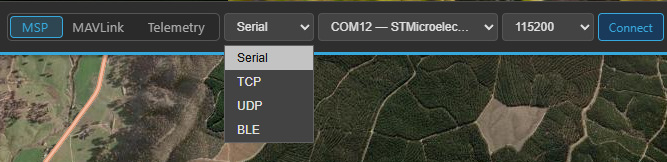
The transport dropdown: Serial, TCP, UDP, or BLE.
TCP and UDP (network links)
For network links — a SITL simulator, a companion computer, a Wi-Fi/serial bridge, or a MAVLink router forwarding to your PC.
- Transport → TCP or UDP.
- Host — the IP address to reach (e.g. the bridge's LAN address). Left empty, the field shows a
faded
localhostand Kite connects to this device itself (127.0.0.1), which is what a local simulator needs. - Port — the network port.
Kite fills in the usual default and swaps it when you change either the protocol or the transport:
| Protocol | Transport | Default port | Typical use |
|---|---|---|---|
| MAVLink | UDP | 14550 |
The standard MAVLink GCS port |
| MAVLink | TCP | 5760 |
ArduPilot SITL's MAVLink port |
| MSP | TCP | 5761 |
INAV SITL's MSP port |
| MSP | UDP | 14550 |
No standard MSP port exists, so this is only a starting point |
Telemetry is passive and has no port of its own, so choosing it leaves the port alone.
A custom port you've typed (for example a second SITL on 5762) is left untouched by both
selectors, and stays yours across restarts: Kite remembers that you typed it rather than going by the
number. Type the standard port for the current selection and it goes back to following the
selectors, so there is always a way back.
If Settings → Interface → UI → Default Protocol is pinned, the port follows it at startup, the same way it follows the selectors.
On UDP, Kite listens on the port it targets, so a vehicle or bridge that pushes its telemetry to
that port reaches it. If another program already listens there — Mission Planner on 14550, say —
Kite listens on the same port plus 10000 instead (14550 → 24550), and on a random free port
only if that one is taken too. The alternate port stays the same on every reconnect, so a relay that
streams to Kite's address finds it again. Telemetry pushed to the original port still lands in the
other program, though: if the handshake then fails, the error names the busy port — close the other
program's UDP connection, or point the vehicle (or the other program's MAVLink forward) at a port Kite
can own.
Kite answers every sender it has heard on a UDP link in the last ten seconds, not only the last one — so several SITL instances or bridges that share one port, each from its own socket, all receive Kite's messages.
Protocol still applies
Choose the matching protocol for a network link too — MAVLink for an ArduPilot/PX4 simulator or router, MSP for an MSP-over-TCP bridge.

With TCP or UDP selected, the port fields become a host and a port.
BLE (Bluetooth Low Energy)
For BLE-to-serial adapters — the same kind INAV Configurator supports.
- Transport → BLE. Kite starts scanning immediately.
- Pick your device from the live list. Each entry shows its name, the matched profile, and the
signal strength (e.g.
SpeedyBee — SpeedyBee Type 2, -67 dBm). - Connect.
Recognised profiles: CC2541-based, Nordic NRF (NUS), SpeedyBee Type 1, and SpeedyBee Type 2. Devices that advertise a name but no known profile are listed as Unknown — you can still try to connect; the profile is matched during the connection. Known profiles are listed first, then sorted by signal strength.
Why some adapters appear late
Many BLE serial adapters don't advertise their service UUID until after a connection is opened, so Kite scans without a UUID filter and matches the profile on connect. Give the list a moment to populate.
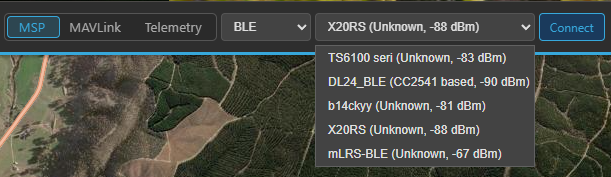
The live BLE scan: each device shows its name, matched profile, and signal strength.
Passive telemetry (listen-only)
Set the protocol to Telemetry to monitor a one-way telemetry downlink without ever transmitting. Kite listens on the chosen transport and auto-detects the wire format:
- FrSky SmartPort
- TBS Crossfire (CRSF)
- LTM (Light Telemetry)
- MAVLink (push-only — Kite decodes the incoming stream but sends no heartbeat and never requests data)
This is for tapping a telemetry feed — e.g. a SmartPort/CRSF line off your receiver, a ground-side TX module, or a one-way MAVLink downlink — when you don't have (or don't want) a full control link. Because nothing is transmitted:
- There's no handshake — Kite starts decoding as soon as frames arrive.
- RC control is unavailable in this mode (no uplink to send channels), so its tab is hidden while passively connected.
- The detected sub-protocol is shown in the connection status box once it locks.
Passive telemetry works over any transport. On Serial, set the baud rate to match your telemetry source (e.g. SmartPort and CRSF have their own rates) — it isn't auto-detected.
A FrSky radio in trainer mode
A FrSky radio whose Bluetooth is set to trainer sends stick data, not telemetry. Kite recognises that on a BLE link, closes the link and — on the desktop, with RC control enabled — offers the radio as an input for RC control. For telemetry, switch the radio's Bluetooth to telemetry.
Recording works in passive mode
Flight logging still runs while passively connected — arm/disarm is derived from the decoded telemetry, so passively monitored flights land in your logbook like any other.
Relay / forwarding (separate from connecting)
The ⇅ Relay button in the top bar is not a connection — it re-encodes your live telemetry and re-broadcasts it to other ground stations, handsets, or an antenna tracker, over a separate output. It's covered in its own guide: Relay & forwarding.
Next to it, ≡ Raw appears while you are connected: a read-only popup with every raw telemetry value the app holds — see Raw telemetry.
On a phone
The phone layout has no connection bar: tap the 🔗 chain-link button at the top-right of the map instead. The pop-out holds the same controls (protocol and transport, then port / host / device, Connect) plus the Relay button; the raw-telemetry popup is not available on the phone.
Android: the link keeps running in the background
While Kite is connected, Android shows a persistent notification with the aircraft, battery, flight mode and distance to home (Android 13+ asks for notification permission on the first connect — refusing only hides the notification). Minimising Kite or switching to another app keeps telemetry, the flight recording and the track running; when you come back the trail is complete. Switching the screen off is not held open: the link may drop, and on your return Kite either offers the usual recording prompt (continue / discard / save) or reconnects once.
After you connect
- The button becomes Disconnect; the top bar shows arming readiness, per-sensor health, battery and link quality; widgets start updating; your aircraft appears on the map once it has a GPS fix.
- INAV/MSP links — including INAV over MAVLink (MSP/MAV) — additionally download the safe-home/autoland config and (on INAV 8.0+) geozones for the map overlay. ArduPilot/PX4 MAVLink links download the geofence and rally points.
Reconnecting
Kite remembers your last protocol, transport, port/host, baud, and BLE device, so reconnecting is usually a single click on Connect. To drop the link, click Disconnect.
A link that goes quiet is not dropped: when the aircraft has sent nothing for three seconds on an MSP or MAVLink link, the status bar switches to Reconnecting… (amber dot), Kite keeps the link open, and the display returns to normal as soon as data arrives again — a radio dropout heals on its own. Once a link that had delivered data is silent for five seconds, a red Telemetry lost line is pinned above the system messages, with a timer counting up and an alarm tone that repeats every minute; on the phone the dot of the 🔗 button turns amber. The line stays until data returns or you disconnect, whatever System Messages is set to. The same holds when a TCP or Bluetooth connection breaks — the Wi-Fi bridge or the Bluetooth module restarted, or it was out of range for a while: Kite connects to the same address or device again in the background, every few seconds, and carries on where it left off. Only a lost transport — a USB cable unplugged, Bluetooth switched off, no network left to reach the address (Wi-Fi off, cable out), or a TCP connection that breaks before any data arrived — ends the connection; if a flight was being recorded, Kite then asks what to do with it (Device connection lost: Discard, Save Incomplete or Continue on Reconnect).
If you always fly the same link and would rather not have a stray session decide, set Settings → Interface → UI → Default Protocol to that protocol: it then wins on every launch. Leave it on Last used for the behaviour described above.
Trouble connecting?
Wrong baud rate, a port already held by another app, a Bluetooth first-open timeout, or a missing USB-serial driver are the usual culprits. The Troubleshooting → Connection page works through each.