Vehicles
The vehicle library is a catalogue of your aircraft — a structured build sheet for each one, plus its flight history. Every flight stores the vehicle it belongs to, recognised when the flight is saved by the flight controller's FC hardware ID, or by its craft name — so the library fills itself in as you fly. It's a subfeature of the logbook: open it with the Vehicles button in the logbook toolbar.
The vehicle list
Vehicles are grouped by type and can be searched (by name, craft name, model, type, notes, flight controller or FC hardware ID). Each row shows the name, and below it the type, the craft name — or the shortened FC hardware ID for a vehicle without one — and the model. Pick one to open its build sheet; the toolbar also creates a new vehicle and imports one from a file. While connected over INAV or MAVLink, the UAV Info panel can also save the connected craft here in one click.
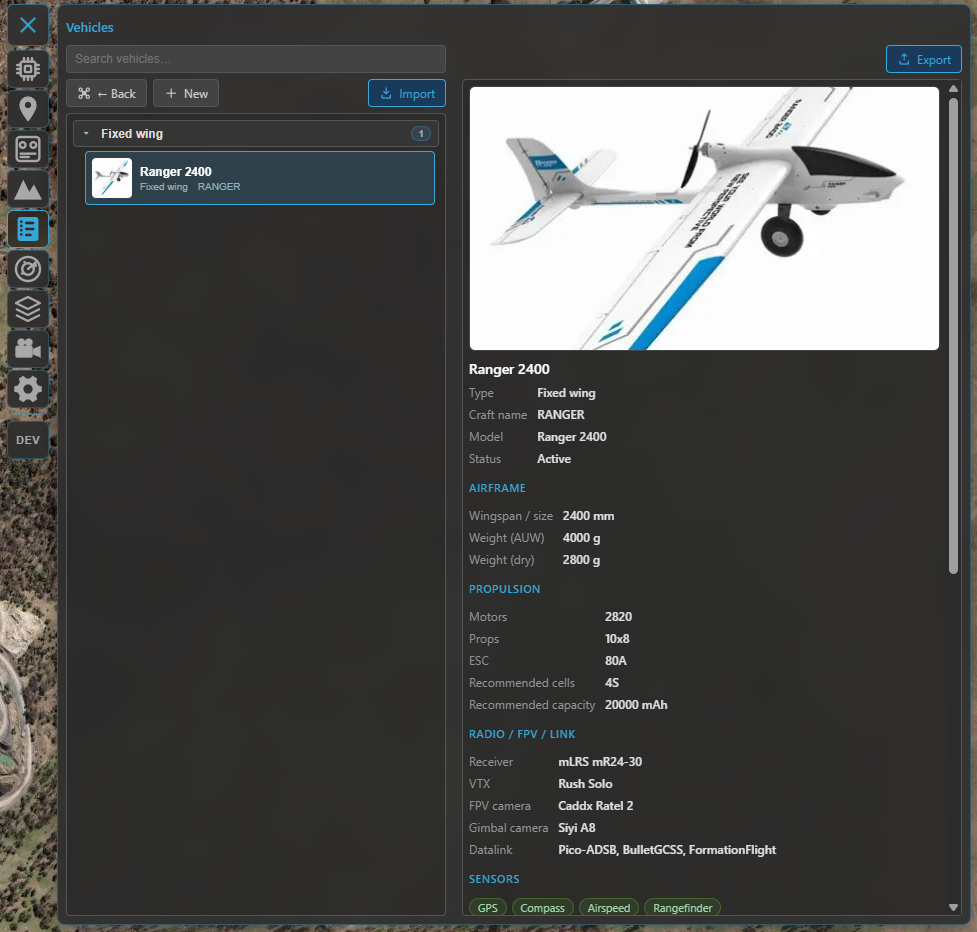
The vehicle library — your aircraft grouped by type, with search and per-vehicle build sheets.
The build sheet
Each vehicle is a structured record you can fill in as much (or as little) as you like:
- Identity — name, craft name (a link key — see below), type (fixed-wing, flying-wing, VTOL, multirotor, tricopter, helicopter, rover, boat, other) and status (active, storage, retired, damaged, crashed), plus a header image and free-form notes. The type is more than a label: when the vehicle carries the FC hardware ID of the connected flight controller, it sets the vehicle type Kite uses on that link — other leaves it to the detection.
- Airframe — model, wingspan, length, all-up weight and dry weight.
- Propulsion — motors, propellers, ESC, and a recommended battery (cells / capacity).
- Radio, FPV & datalink — receiver, video transmitter, camera, gimbal camera, datalink.
- Sensors — checkboxes for GPS, RTK, compass, airspeed, rangefinder and optical-flow.
- Flight controller — model, manufacturer, firmware and version, whether blackbox is available, and the FC hardware ID (filled in automatically when the vehicle is created from the connected craft via the UAV Info panel) — the first key flights are recognised by, see below.
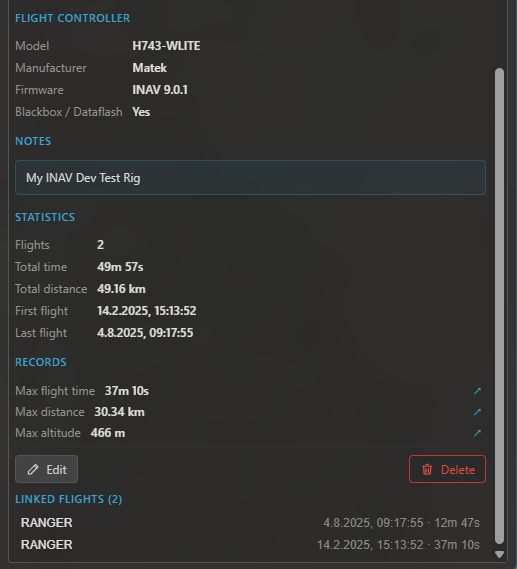
A build sheet: image header, structured specs, lifetime stats and the flights linked to this aircraft.
Linking flights
Each flight stores the vehicle it belongs to. When a flight is saved — a live recording, a log import or
a .kflight import — Kite looks for its vehicle:
- the vehicle whose FC hardware ID is the one the flight was flown with,
- else the vehicle whose craft name matches the flight's (ignoring case and surrounding spaces).
If several vehicles match, the newest one wins. When unsure, the flight stays unassigned: a flight with an FC ID is never linked by craft name to a vehicle that stores a different FC ID (a swapped flight controller, or a second aircraft with the same name) — you decide on the post-flight summary, or later in the logbook. A flight keeps the FC ID it was flown with and its recorded craft name (unless you correct the name with ✎ in the logbook); the link to the vehicle is stored next to them and can be changed at any time.
- INAV reports both — the craft name and the FC ID (also over MSP/MAV).
- ArduPilot / PX4 report an FC ID but no craft name: pick the vehicle once on the post-flight summary, and Kite offers to store the FC ID in that vehicle — from then on its flights are recognised by themselves. Picking the vehicle later in the logbook links only that one flight.
- No FC ID comes from telemetry-only links, from imported logs (they link by craft name), from INAV over plain MAVLink (without MSP/MAV), and from simulators that report a placeholder instead of a real ID (INAV SITL, PX4 SITL as system ID 1).
After a flight the post-flight summary shows the vehicle it was recognised as, with a picker to choose another one or none. After Save Kite asks when the choice raises a question:
- the vehicle has no FC ID yet but the flight has one → Store FC ID (existing flights flown with this FC ID or the vehicle's craft name that belong to no vehicle yet are linked too);
- the vehicle has a different FC ID → FC swapped — replace ID (the vehicle keeps all its earlier flights and gets this one), Create new vehicle (a second aircraft with the same craft name) or Leave unassigned (the flight belongs to no vehicle; link it later in the logbook);
- no vehicle matched → Create vehicle opens the Manager pre-filled from the flight, and the flight belongs to the new vehicle once it is saved. A flight with neither a craft name nor an FC ID gets no such offer.
An FC ID belongs to one vehicle. When Store FC ID or replace ID gives a vehicle an FC ID that
another vehicle stores, the question names that vehicle, and answering yes removes the ID there. Entering such an FC
ID on a build sheet, or importing a .kvehicle that carries one, asks first whether to move it — Cancel
saves nothing. Save to vehicle library in the UAV Info panel never creates a second vehicle with an
FC ID that is already in the library.
Existing flights are only re-linked with your OK. After creating a vehicle (here, from the post-flight
summary, from a flight in the logbook, with Save to vehicle library in the UAV Info panel or by a
.kvehicle import), after changing its craft name, and after entering an FC ID on a vehicle that had
none, Kite counts the logged flights flown with the vehicle's craft name or its FC ID that belong to no
vehicle yet and asks whether to link them — a flight flown with a different FC ID is never counted by
its craft name. Swapped the flight controller? Replace the FC ID on the build sheet: the earlier
flights stay with the vehicle and the new FC's flights are recognised by the new ID. Kite asks only when
flights flown with the new FC ID are already in the logbook without a vehicle (it offers to link
those).
Each vehicle then shows its lifetime totals (flight count, time, distance) and the list of linked
flights, jump-to-able from the build sheet. A .kflight export does not carry the link (the
library is local); importing it recognises the vehicle again in the receiving library.
INAV extras
When an INAV flight controller is connected (and disarmed):
- Write to FC — push the build sheet's craft name to the FC, so its future flights carry the same craft name as the vehicle.
- Adopt FC lifetime stats — read the FC's onboard
statstotals (if the feature is enabled) and stage them as the vehicle's lifetime baseline; saved, they're added to the logbook flights so the totals reflect the airframe's whole life, including flights from before you used Kite.
Deleting a vehicle
Deleting a vehicle never deletes flights. With linked flights, the dialog offers to transfer them to another vehicle first (pick it from the list — handy when an aircraft is replaced and its pilot keeps the history), or to delete without transfer: the flights stay in the logbook and belong to no vehicle.
Import & export
Move a vehicle between installs (or back it up) with a .kvehicle file — export the open vehicle, or
import one (with a preview before it's added). The lifetime baseline travels with the file.
Where to go next
- Where vehicles link from: Flight logbook.
- The other logbook library: Batteries.